


Python Articles
Freelancing as a Python Developer: Getting Your First Client
Common Python Mistakes Beginners Make And How to Fix Them
Python Best Practices: Writing Clean, Maintainable Code Like a Pro
How to Build a Python Developer Portfolio That Gets You Hired


Get In Touch For Details! Request More Information

How To Create Virtual Environment In Python
Mar 11, 2026 4 Min Read 1610 Views
(Last Updated)
Imagine you’re working on two Python projects at the same time. One runs smoothly today, but after installing a new library for another project, the first one suddenly starts throwing errors that never existed before. Nothing in your code changed, yet something clearly went wrong.
This confusion is exactly what this blog helps you avoid by showing how to create a virtual environment in Python, a simple practice that keeps every project separate, stable, and stress-free from the start. In this blog, you will learn what a virtual environment is, why it’s important, how to create and activate one, install packages inside it, and manage it effectively for all your Python projects.
Quick Answer
A virtual environment in Python is an isolated workspace that allows you to install project-specific packages without affecting your system Python or other projects. You can create it using Python’s built-in venv module, activate it, and then install the required libraries. This ensures each project remains separate, organized, and free from dependency conflicts.
What Is A Virtual Environment In Python
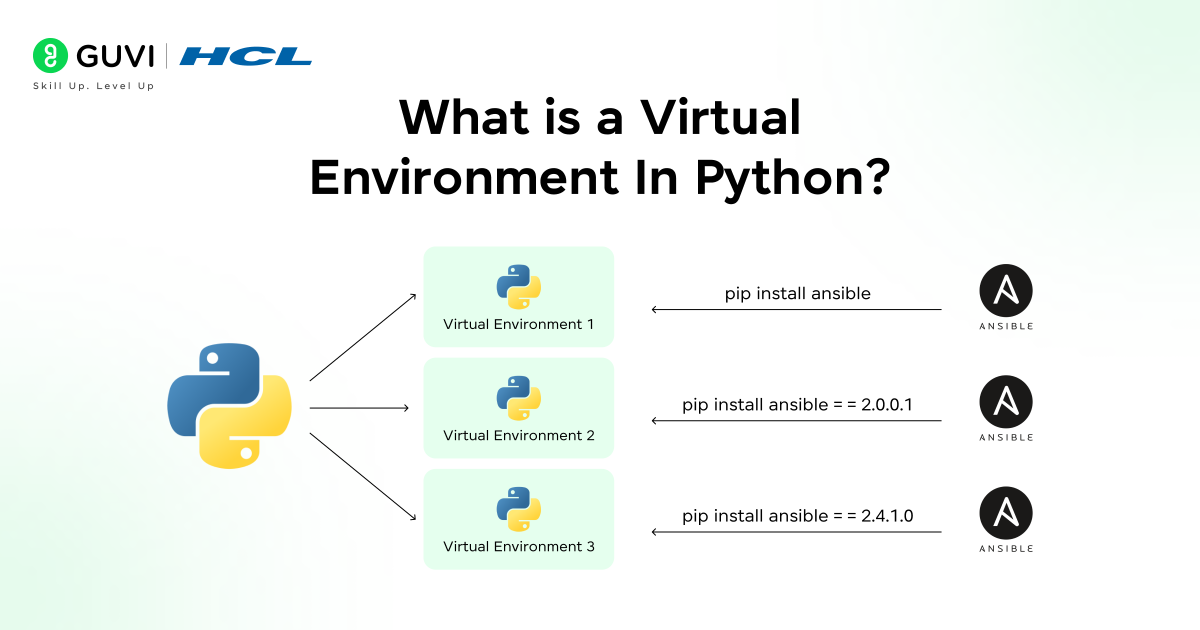
A virtual environment in Python is an isolated workspace that contains its own Python interpreter and its own set of installed packages. It allows each project to operate independently, ensuring that changes in one project’s libraries or dependencies do not affect other projects on the same system.
Without a virtual environment, all packages are installed globally, which can easily lead to version conflicts and errors when different projects require different versions of the same library. By using virtual environments, developers can keep each project self-contained, organized, and stable, making coding, testing, and collaboration much smoother.
Example: Imagine you are working on two projects. Project A requires the library Django 3.2, while Project B needs Django 4.1. Installing both versions globally would cause one of the projects to break. With virtual environments, you can create separate spaces for each project, allowing Project A to use Django 3.2 and Project B to use Django 4.1 without any conflicts.
Do check out HCL GUVI’s Zen Class Python Course to practice Python with real projects. You’ll learn how to create and manage virtual environments just like in this blog. This hands-on approach helps you keep projects organized and write clean, conflict-free Python code.
How To Create And Activate A Virtual Environment In Python
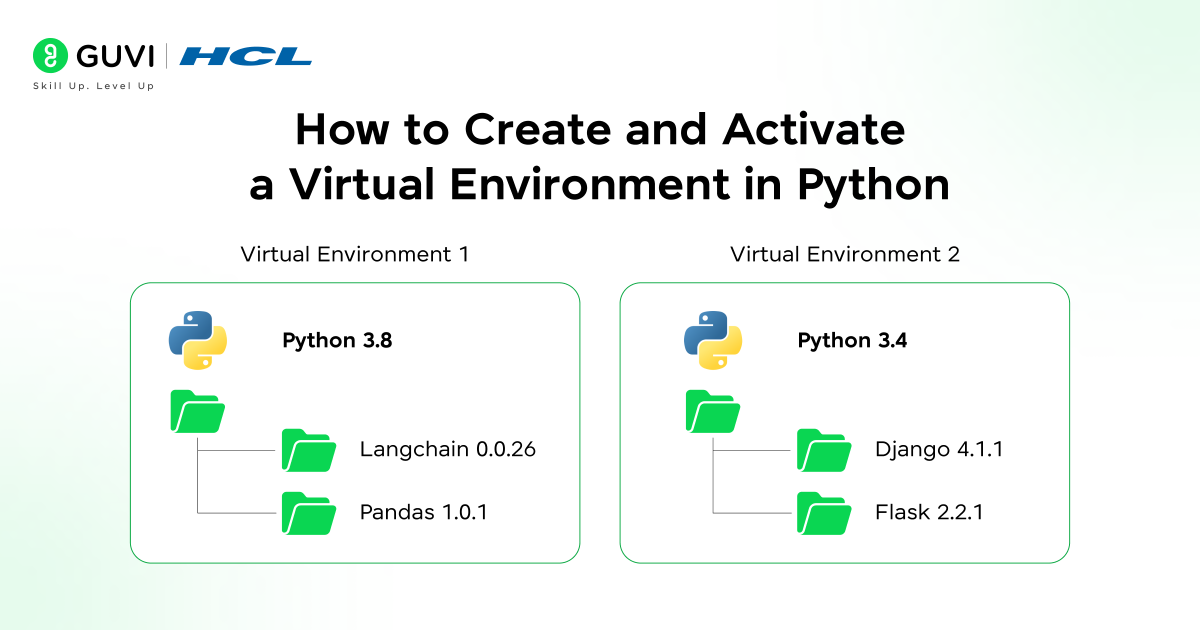
This section explains the complete and practical workflow of using a virtual environment in Python. You will learn how to create a virtual environment, activate it, install packages inside it with clear meaning, and deactivate it correctly. Every step is explained in detail so beginners understand not just what to do, but why they are doing it.
Table of contents
- How To Create A Virtual Environment In Python
- How To Activate A Virtual Environment In Python
- How To Install Packages Inside A Virtual Environment
- How To Deactivate A Virtual Environment In Python
- 💡 Did You Know?
- Can I use one virtual environment for multiple Python projects?
- What happens if I forget to activate the virtual environment before installing packages?
- Can I rename the virtual environment folder after creating it?
- Is it mandatory to delete a virtual environment after finishing a project?
- Do virtual environments work with all Python frameworks and libraries?
1. How To Create A Virtual Environment In Python
Creating a virtual environment means setting up a separate Python workspace for your project. This workspace has its own Python interpreter and its own place to store libraries, fully isolated from other projects and the system Python. This isolation is what prevents dependency conflicts later.
Step 1: Open the terminal or command prompt on your system. This is where all Python and environment-related commands are executed.
Step 2: Navigate to your project directory using the cd command. Creating the environment inside the project folder keeps everything organized.
Step 3: Check if Python is installed and accessible. This confirms your system can run Python commands correctly.
python --versionAlso read – how to install python on windows and how to install python on mac and linux
Step 4: Create the virtual environment using the venv module.
python -m venv venvThis command creates a folder named venv that contains a dedicated Python interpreter and a private package installation directory for the project.
2. How To Activate A Virtual Environment In Python
Activating the virtual environment tells your system to use the isolated Python setup instead of the global Python installation. Without activation, any libraries you install will go into the system environment, which defeats the purpose of using a virtual environment.
Step 1: Ensure you are inside the project directory where the venv folder exists.
Step 2: Choose the correct activation command based on your operating system.
For Windows:
venv\Scripts\activateFor macOS or Linux:
source venv/bin/activateStep 3: Observe the terminal prompt after activation. If the environment name appears, the virtual environment is active and ready for use.
3. How To Install Packages Inside A Virtual Environment
Installing packages inside a virtual environment means adding libraries that are available only to this specific project. These packages will not affect other projects or the system Python, ensuring clean dependency management.
Step 1: Confirm that the virtual environment is active by checking the terminal prompt.

Step 2: Install a package using pip.
pip install requestsThis command installs the Requests library, which is commonly used to send HTTP requests, call APIs, and fetch data from web services. The library is installed only inside the virtual environment.
Step 3: Verify the installed packages if needed.
pip listThis displays all libraries installed in the virtual environment, confirming successful installation.
4. How To Deactivate A Virtual Environment In Python
Deactivating a virtual environment exits the isolated workspace and returns you to the system Python. This action does not delete the environment or remove installed packages.
Step 1: Make sure all work inside the virtual environment is complete.
Step 2: Run the deactivate command.
deactivateStep 3: Check the terminal prompt. If the environment name is no longer visible, the virtual environment has been successfully deactivated.
Do check out HCL GUVI’s Python eBook to deepen your understanding of Python concepts. It covers practical examples and best practices, including working with virtual environments, so you can follow along with this blog effectively. This resource is perfect for reinforcing your learning and building strong Python foundations.
Why Virtual Environments Are Important In Python
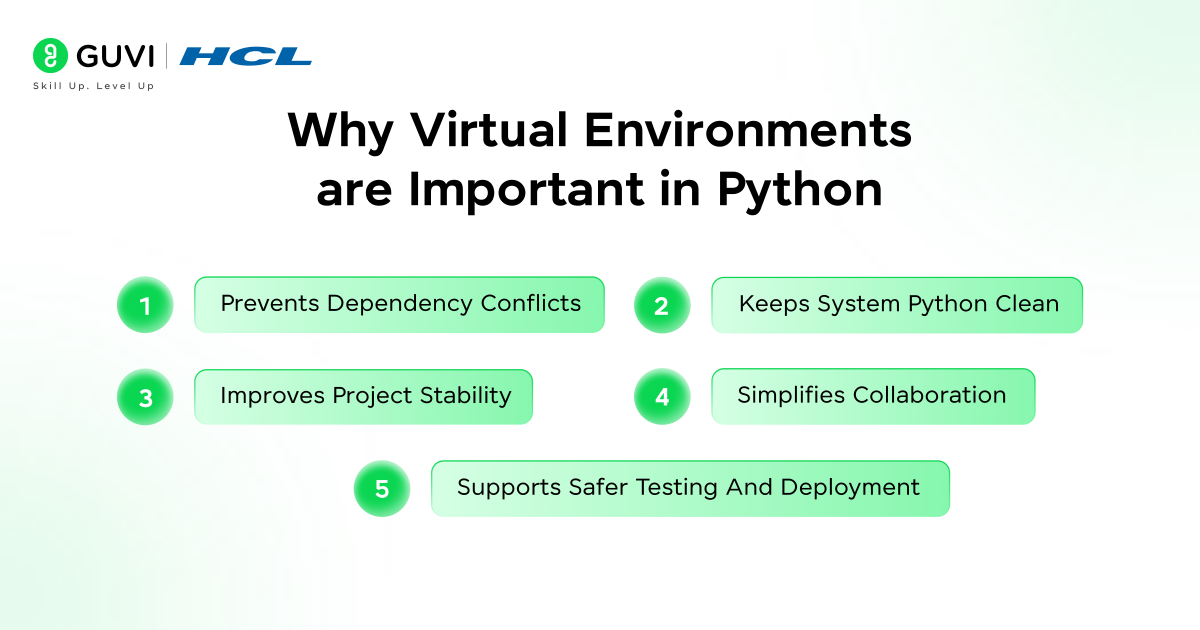
Virtual environments are important because they allow Python projects to remain isolated from one another while sharing the same system. They ensure that installing, updating, or removing libraries for one project does not accidentally affect another project running on the same machine. This isolation makes development safer, cleaner, and far more predictable.
Key Points
- Prevents Dependency Conflicts – Different projects can use different versions of the same library without breaking each other.
- Keeps System Python Clean – Libraries installed inside a virtual environment do not clutter or modify the global Python setup.
- Improves Project Stability – Each project runs with fixed and controlled dependencies, reducing unexpected errors.
- Simplifies Collaboration – Other developers can recreate the same environment and get identical behavior.
- Supports Safer Testing And Deployment – Changes can be tested without risking other projects or production systems.
Do check out HCL GUVI’s Online IDE to practice Python directly in the browser. You can write and run Python code instantly, experiment with packages, and test your projects safely without installing anything on your system.
💡 Did You Know?
- Python’s venv module comes built-in with Python 3.3 and above, so you don’t need any external tools to create virtual environments.
- Each virtual environment has its own pip, which means packages installed inside it never affect other projects.
- Virtual environments are lightweight because they reuse the system Python instead of copying everything.
Conclusion
Learning how to create a virtual environment in Python is a foundational step toward writing clean and reliable code. It helps you avoid common dependency problems, keeps your system Python untouched, and ensures each project runs in its own controlled setup.
By making virtual environments a standard part of your workflow, you gain better control over your projects, smoother collaboration, and fewer surprises as your codebase grows and evolves.
FAQs
1. Can I use one virtual environment for multiple Python projects?
It is not recommended to use a single virtual environment for multiple projects because dependencies can differ. Each project should have its own virtual environment to avoid conflicts.
2. What happens if I forget to activate the virtual environment before installing packages?
If the virtual environment is not active, packages will be installed in the system Python instead, which can cause version conflicts and clutter the global environment.
3. Can I rename the virtual environment folder after creating it?
Yes, the folder can be renamed, but you must activate it using the updated folder name. Using a standard name like venv helps avoid confusion.
4. Is it mandatory to delete a virtual environment after finishing a project?
No, deleting a virtual environment is optional. You can keep it for future updates or safely remove it if the project is no longer needed.
5. Do virtual environments work with all Python frameworks and libraries?
Yes, virtual environments work with all Python libraries and frameworks since they simply provide an isolated Python setup.
Success Stories

About the Author
Jebasta
I translate the language of data into stories that anyone can understand. As a writer with a data science background, I simplify analytics, AI, and decision-making so beginners and enthusiasts can confidently explore the world of data.
View all posts by Jebasta
Connect with me @











Did you enjoy this article?