


Software Development Articles
How to Read and Understand System Design Diagrams?
System Engineer Roles and Responsibilities: 12 Proven Duties for Growth
SAP Consultant Roles and Responsibilities: 12 Proven Duties for Growth and Success
Network Engineer Roles and Responsibilities: 12 Essential Duties for Success


Get In Touch For Details! Request More Information
3 Easy Methods for the Installation Of Operating System in 2026
Sep 26, 2026 3 Min Read 4177 Views
(Last Updated)
The installation of operating system can start with something as simple as a USB drive, but that is not where the options end. Depending on your situation, you may have more than one way to get your computer up and running.
A regular installation is only part of the picture. What if you do not have a laptop ready, or the system you are trying to access will not boot? The methods below cover some interesting ways to handle these situations.
Quick Answer: You can install an operating system using a bootable USB drive, an Android phone, or a Live OS. The best method depends on your device and what you need to do.
Table of contents
- Different Methods of Installation of Operating System
- Method 1: Installing an Operating System Using a Bootable USB Drive
- Method 2: Install an OS Using an Android Phone (No Laptop Needed)
- Method 3: Use a Live OS for Data Recovery or Emergency Use
- Conclusion
- What is the easiest way to install an OS?
- Can I install an OS without a USB?
- What is a Live OS?
- How long does it take to install an OS?
Different Methods of Installation of Operating System
Method 1: Installing an Operating System Using a Bootable USB Drive
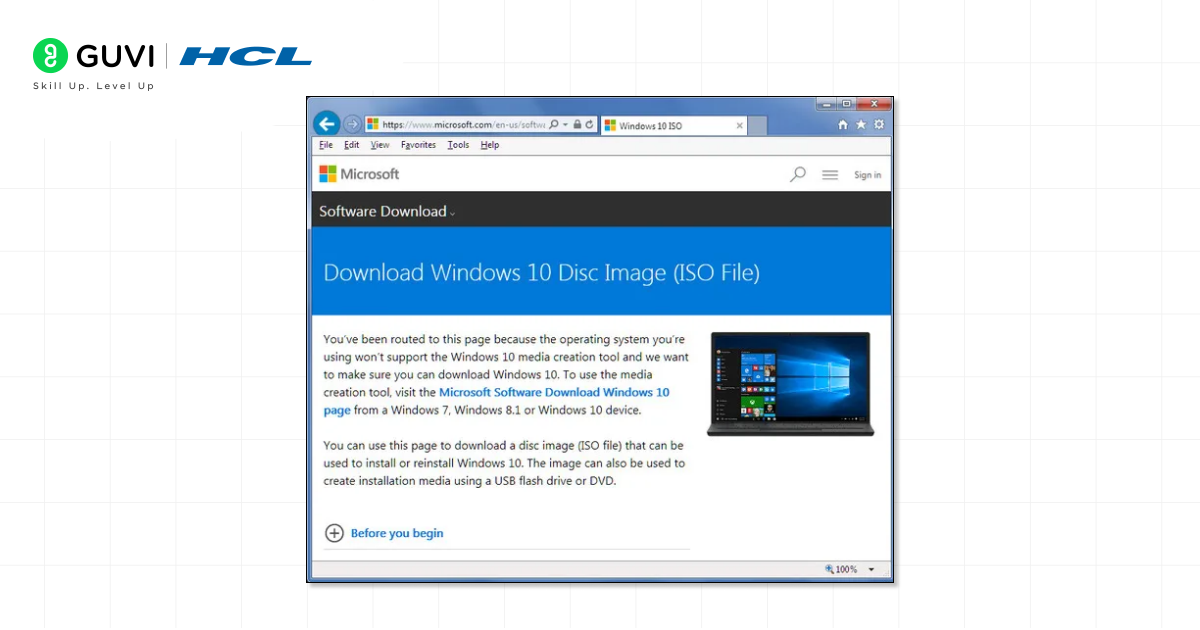
Step 1: Download the OS Image
- Visit the respective OS’s official website (e.g., Microsoft, Ubuntu, Fedora).
- Get the ISO file – a compressed image of the OS OS installation files.
- Example: Windows 11.iso or ubuntu-24.04.iso.
Step 2: Prepare a Bootable USB Disk.
You’ll need:
- A USB drive (8 GB or more).
- An application such as Rufus, Ventoy, or Balena Etcher.
Process:
- Insert the USB in a working computer.
- Open Rufus and choose the ISO file.
- Select GPT (UEFI) or MBR (Legacy) based on your PC type.
- Click Start – Rufus will make your USB bootable.
Step 3: Boot from the USB Drive
- Insert the bootable USB into the target computer.
- Reboot the system and get into the BIOS/UEFI configuration.
- Common keys: F2, F10, F12, DEL.
- Change the boot order so USB is the first boot device.
- Save and quit; your PC will restart and boot up from the USB.
Step 4: Begin Installation
- The setup window (Windows/Linux) is displayed.
- Choose Language, Territory, and Keyboard layout.
- Click on Install Now.
Also read: Functions of Operating System: A Beginner’s Guide
Step 5: Choose the Type of Installation.
You usually get:
- Upgrade: Keeps your files and applications (not recommended if your old OS is corrupted).
- Custom (Clean Install): Overwrites all data and installs a fresh copy.
Select Custom and have a complete clean install.
Step 6: Partition the Disk
- Choose the drive which you would like to install the Operating system(typically, it is Drive 0).
- For a full format, delete the existing partitions, or choose the partition you want to install the OS on.
- Click Next to continue.
Install files and prepare your system will now be copied by the installer. This can take several minutes.
Step 7: Automatic restart and setup.
- After installation, the system will restart automatically.
- When prompted to reboot into setup or remove the USB, remove the USB drive.
Step 8: Configuring after the installation.
- Upon restarting, you will be requested to:
- Create a user account.
- Connect to Wi-Fi.
- Select privacy and location.
- When it is complete, you will be in your new desktop world.
Step 9: Install Drivers and Updates.
- Access Device Manager (Windows) or Software & Updates (Linux).
- Install display, Wi-Fi, Bluetooth, and audio drivers.
- Patch security and performance. Run system updates.
Step 10: Install Apps and Tools
- Install your basic applications: browsers, IDEs, antivirus, office applications, etc.
- Configure your system preferences.
Also read: 8 Different Types of Operating Systems You Should Know
- Windows 11 automatically detects and installs most drivers during setup no manual driver hunting needed!
- Some Linux versions like Ubuntu Live let you run the OS without installing it perfect for quick fixes or testing.
- A typical OS installation that once took hours can now be completed in under 30 minutes using a bootable USB.
Start Learning with HCL GUVI’s Operating System Tutorial Handbook and master essential concepts like Processes, Memory Management, File Systems, Multithreading, Synchronization, Deadlocks, and more. Access this comprehensive handbook for free and build a strong foundation in Operating Systems at your own pace!
Method 2: Install an OS Using an Android Phone (No Laptop Needed)
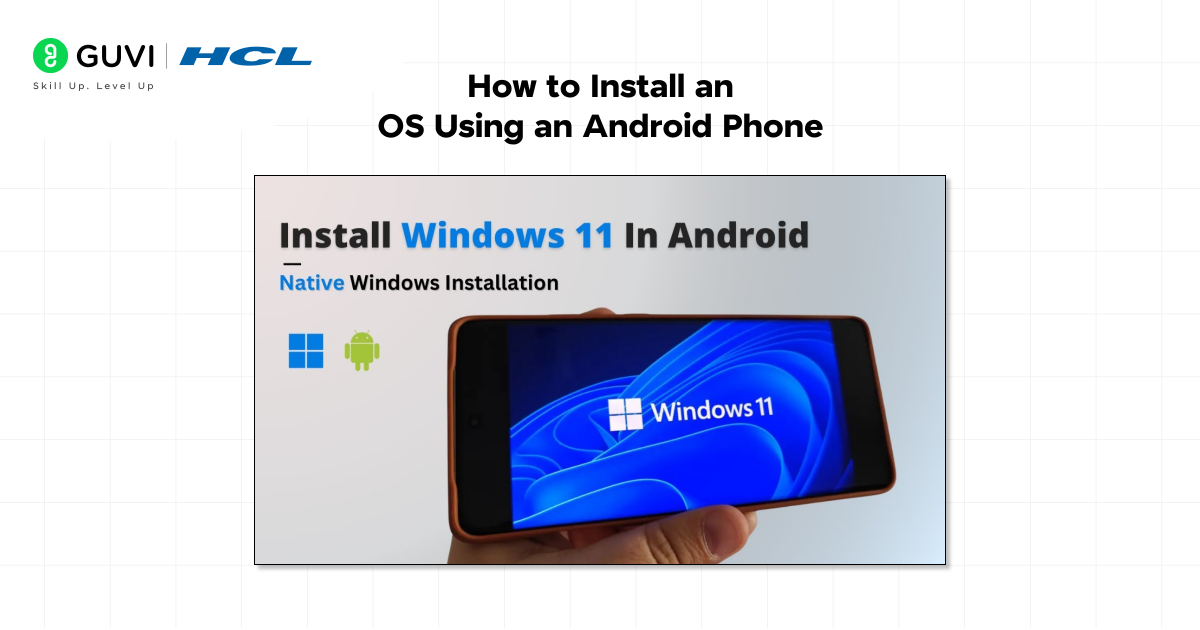
Step 1: Install the OS Image on your Android phone.
- Get an ISO or IMG file of the operating system you wish to install (e.g., Windows 11, Ubuntu 24.04).
- Store it on your phone’s internal storage or SD card.
Step 2: Mount the ISO File on Android

- Mount the image using a file manager program such as ZArchiver, MT Manager or ISO Extractor.
- Once mounted, you will see folders such as boot, sources, etc.
Step 3: Copy SD Card Root Directory Files to SD Card
- Copy all mounted files in the SD card root folder (not in a folder).
- Example: /SDCARD/ must be the direct place where files such as bootmgr, setup.exe, and /sources/ are displayed.
- After copying, safely unmount the copy.
Step 5: Connect Android to Your PC
- Connect your phone to the damaged PC with a USB cable.
- On Android, open the USB menu and choose Mass storage mode (or File transfer (MTP) on recent phones).
Step 6: Boot the PC from the SD Card
- Reboot the PC and get into BIOS/UEFI (press F2, F10, F12, or DEL).
- Select the SD card (phone storage) as the boot device.
- Save and reboot your computer; it should now boot to the mounted OS files.
Step 7: Install the Operating System.
- Install Windows or Linux following the on-screen instructions.
Step 8: Post-Installation Cleanup
- Move the OS files from the SD card root to a subfolder (e.g., /SDCARD/old_install/) to prevent the BIOS from booting them every time.
Also read: Components of an Operating System
Method 3: Use a Live OS for Data Recovery or Emergency Use
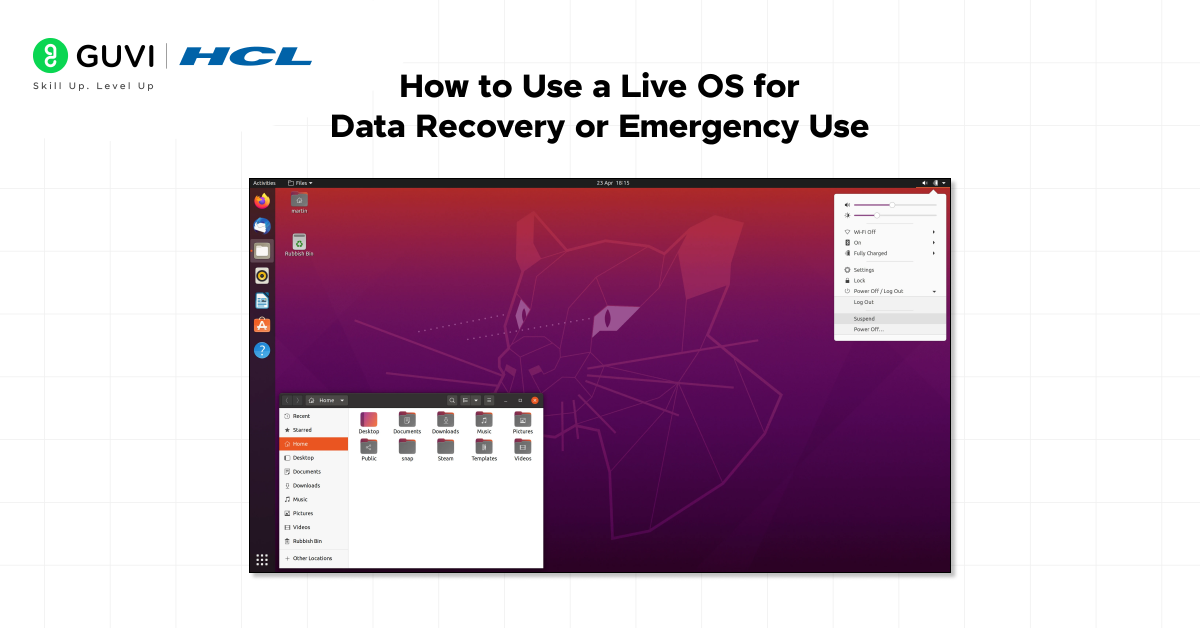
Step 1: Download a Live OS Image
- For Example: Ubuntu Live, Kali Linux Live, Hiren’s Boot PE, or Fedora Live.
Step 2: Create a Bootable USB or Use Android
- Use your smartphone to transfer the Live OS ISO to your SD card or USB and mount it.
- Boot your computer from that media.
Step 3: Boot Into the Live OS
- Go to the BIOS / UEFI and select your SD card or USB as the boot device.
- The operating system runs directly from RAM; no installation is needed.
Step 4: Recover or Test
- Access the other partitions (possibly D: or E:) to recover files from the damaged or unbootable operating system.
- Use the built-in tools for diagnostics or virus scanning.
Step 5: Shutdown
- When finished, just shut down the PC.
- The Live OS will disappear because it never changes your hard drive.
Ready to turn your coding skills into a future-ready career? Join HCL GUVI’s Software and AI Engineer Programme to learn Full Stack Development, AI, and industry-ready skills through hands-on projects and expert guidance. Start learning today and build your future in tech!
Conclusion
Choosing the right method can make the process much easier, especially when your usual setup is not available. Whether you have a USB drive, an Android phone, or need a temporary system for an emergency, knowing your options gives you more flexibility when it matters. With the right approach and a little preparation, you can handle the setup with much less hassle.
1. What is the easiest way to install an OS?
The easiest and most common way to install an OS on any machine is to use a bootable USB drive.
2. Can I install an OS without a USB?
Yes! You can install an OS using your Android phone by mounting the ISO file and connecting it to your computer in mass storage mode.
3. What is a Live OS?
A Live OS lets you run an operating system from a USB or SD card without installing it on the hard drive, which is great for testing and data recovery.
4. How long does it take to install an OS?
It typically takes about 20-45 minutes, depending on the computer’s speed and the type of OS.
Success Stories










Did you enjoy this article?