


AWS Kubernetes Articles
Istio Service Mesh Tutorial for Beginners
Crossplane Tutorial: A Practical Guide for Learners


Get In Touch For Details! Request More Information
Spring Boot Application Deployment on AWS Using EC2 and RDS
Sep 02, 2025 2 Min Read 3250 Views
(Last Updated)
Deploying a Spring Boot application on AWS using EC2 and RDS helps you move from local testing to a real-world, scalable backend. When you connect your application with a managed MySQL database in RDS and run it on EC2, you bring flexibility and reliability to your project. This guide covers every essential step, from packaging your app to running it live in the cloud, making sure you understand both the technical actions and the reasons behind them.
If you want a smooth transition to cloud deployment, this walkthrough gives you practical solutions for Spring Boot and AWS integration.
Table of contents
- What You’ll Learn
- Prerequisites
- Spring Boot Application Deployment on AWS Using EC2 and RDS
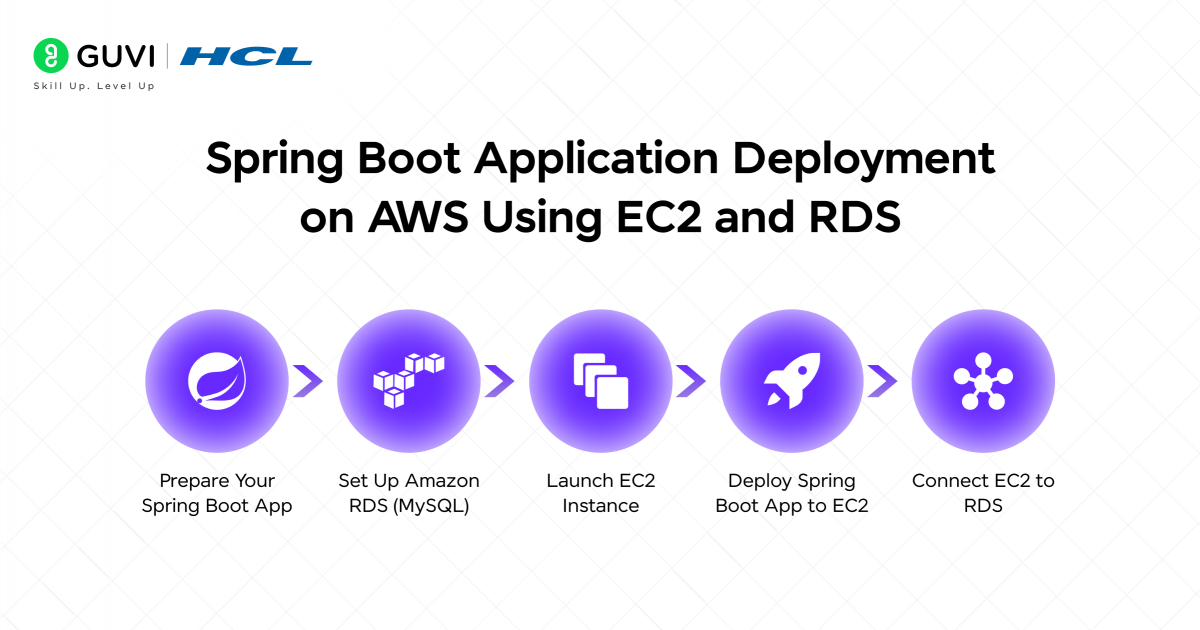
- Step 1: Prepare Your Spring Boot App
- Step 2: Set Up Amazon RDS (MySQL)
- Step 3: Launch EC2 Instance
- Step 4: Deploy Spring Boot App to EC2
- Step 5: Connect EC2 to RDS
- Final Verification
- Conclusion
What You’ll Learn
- How to set up a Spring Boot application for deployment.
- How to create and configure an Amazon RDS instance.
- How to launch and configure an EC2 instance.
- How to deploy your .jar file and connect it to the RDS database.
Prerequisites
Before we begin, ensure you have:
- An active AWS Account.
- A working Spring Boot application with MySQL configuration.
- AWS CLI installed (optional but useful).
- A .pem key pair to access EC2 via SSH.
- Maven is installed to build the .jar.
Spring Boot Application Deployment on AWS Using EC2 and RDS
Step 1: Prepare Your Spring Boot App
1.1 Build Your Project
| mvn clean install |
This will generate a .jar file in the target/ directory.
1.2 Configure application.properties
Update the following fields:
properties
| spring.datasource.url=jdbc:mysql://<RDS-ENDPOINT>:3306/<DATABASE> spring.datasource.username=<USERNAME> spring.datasource.password=<PASSWORD> spring.jpa.hibernate.ddl-auto=update |
Step 2: Set Up Amazon RDS (MySQL)
2.1 Navigate to RDS Console → Databases → Create Database
- Engine: MySQL
- Template: Free Tier
- Set username and password
- Enable public access
- Select or create a new VPC Security Group
2.2 Modify the Security Group
- Add an inbound rule:
- Type: MySQL/Aurora
- Port: 3306
- Source: Your EC2 Security Group or Your IP
- Type: MySQL/Aurora
2.3 Note Down RDS Endpoint
You’ll need this in your Spring Boot application.properties.
Launch your Java career with Spring Boot expertise! Join our top-rated Spring Boot certification course online and start building real-world applications now.
Step 3: Launch EC2 Instance
3.1 Launch a New Instance

- OS: Amazon Linux 2 AMI
- Instance type: t2.micro (free tier)
- Add key pair for SSH access
- Add a new security group:
- SSH (Port 22) – from your IP
- Custom TCP (Port 8080) – from Anywhere (or your IP for security)
- SSH (Port 22) – from your IP
3.2 Connect via SSH
| chmod 400 your-key.pem ssh -i “your-key.pem” ec2-user@<EC2-PUBLIC-IP> |
3.3 Install Java
| sudo yum update -y sudo amazon-linux-extras enable corretto11 sudo yum install java-11-amazon-corretto -y |
Step 4: Deploy Spring Boot App to EC2
4.1 Upload the JAR
On your local terminal:
| scp -i “your-key.pem” target/app.jar ec2-user@<EC2-PUBLIC-IP>:/home/ec2-user/ |
4.2 Run the Application
| java -jar app.jar |
Your app should now be accessible at:
http://<EC2-PUBLIC-IP>:8080/ |
Step 5: Connect EC2 to RDS
Ensure:
- Your EC2 security group allows outbound access.
- Your RDS security group allows access from the EC2 security group.
Once application.properties is set correctly with RDS endpoint, restart the app:
| java -jar app.jar |
Final Verification
- Visit your EC2 IP on port 8080.
- Test database-related functionality.
- Use tools like Postman or curl to verify endpoints.
- Use MySQL Workbench to connect to your RDS database for direct inspection.
Conclusion
Setting up a Spring Boot application on AWS using EC2 and RDS lays the groundwork for a backend that can scale and adjust as your user base grows. The clear separation between your compute and database layers creates space for better security, easier maintenance, and a path toward high availability as your project develops.
Testing each step along the way, from SSH access to endpoint verification, helps ensure that your application is both robust and ready to support new features. Once you experience a cloud-based deployment that connects cleanly with a managed database, you will start seeing new possibilities for improving performance and reliability in every update that follows.
Success Stories

About the Author
Vaishali
I'm a seasoned writer with four years of experience across technical, non-technical, and just about every genre or niche you can imagine. Adaptable and curious, I enjoy exploring new topics and making information engaging and easy to understand. Fueled by a steady stream of tea, I approach each project with creativity, reliability, and genuine enthusiasm for storytelling.
View all posts by Vaishali
Connect with me @









Did you enjoy this article?