


Artificial Intelligence and Machine Learning Articles
How to Evaluate LLM Outputs in Production Deployments
AI/ML Skills Gap 2026: Why Companies Can't Find Job-Ready Talent
20 AI/ML Interview Questions Recruiters Can Use Without a Tech Background - Best Guide
How Industry-Backed AI/ML Bootcamps Are Changing the AI/ML Hiring Pipeline - Best Guide 2026


Get In Touch For Details! Request More Information
How to Use llama.cpp to Run LLaMA Models Locally in 2026
Aug 11, 2026 9 Min Read 11577 Views
(Last Updated)
Every time you send a prompt to ChatGPT or Claude, it travels to a server somewhere, gets processed, and comes back. That round trip costs money, leaks your data to a third party, and breaks the moment your internet drops. But what if your AI ran entirely on your own machine, offline, for free, with no one watching?
That is exactly what llama.cpp makes possible. It is one of the most powerful open-source tools in AI right now, and it lets you run LLaMA models on your own laptop or desktop without a cloud subscription, without a beefy GPU, and without sending a single character to an external server.
A data scientist in Chennai once used it to build a private document summarizer for her team’s internal research reports, entirely offline, in an afternoon. No API keys. No billing. No data leaving the room. This guide walks you through everything from installation to running your first LLaMA models to launching your own local AI server.
Quick Answer
To run LLaMA models locally using llama.cpp, install it via your system package manager or build it from source, download a GGUF format model from Hugging Face, then run llama-cli -m your_model.gguf in your terminal to start chatting. For a local web server, use llama-server -m your_model.gguf –port 8080 and open your browser at http://localhost:8080.
💡 Did You Know?
- You can even run LLMs on a Raspberry Pi using llama.cpp, though performance will be very slow. The point is that the bar for entry is genuinely low.
- llama.cpp supports 1.5-bit, 2-bit, 3-bit, 4-bit, 5-bit, 6-bit, and 8-bit integer quantization for faster inference and reduced memory use.
- A Llama 2 13B model at Q4_K_M quantization drops from 26GB in FP16 to just 7.9GB, with only about 5 percent quality loss and roughly twice the inference speed.
Table of contents
- What Is llama.cpp and Why Should You Use It
- llama.cpp vs Ollama vs LM Studio — Comparison for Local LLMs
- Before You Begin: GGUF, Quantization, and System Requirements
- Understanding What GGUF Files Are
- Learning How Quantization Reduces Model Size
- Checking Your Hardware and OS Compatibility
- llama.cpp Setup Guide: Install, Download, Run, and Query a Model
- Step 1: Install llama.cpp
- Step 2: Download a Model
- Step 3: Run the Model
- Step 4: Query the Model
- Memory Requirements: Can Your Laptop Run Llama 3.2?
- Run Llama 3 vs Llama 2 Locally — Which Model to Pick?
- Launching the llama.cpp Local Server
- Starting the Server with llama-server
- Managing Multiple Models with Router Mode
- Calling the Server from Python
- Quantizing Your Own Models with llama.cpp
- Converting a Hugging Face Model to GGUF
- Quantizing the GGUF File to a Smaller Format
- Using Hugging Face Tools to Skip Manual Conversion
- Tips for Getting the Most Out of llama.cpp
- Conclusion
- FAQs
- What is llama.cpp used for?
- Do I need a GPU to use llama.cpp?
- What is a GGUF file and where do I get one?
- What is the best quantization level for beginners?
- Can I use llama.cpp with Python?
What Is llama.cpp and Why Should You Use It
Before you touch a terminal, this helps to understand what llama.cpp actually is and why it has become the go-to choice for running AI locally in 2026.
Understanding What llama.cpp Actually Does
llama.cpp is a high-performance C/C++ implementation designed to run large language models locally. It focuses on efficient inference on consumer hardware, enabling you to run models on both CPUs and GPUs without requiring large cloud infrastructure.
Think of it like this: most AI models are designed for powerful data center hardware with dozens of expensive GPUs. llama.cpp lets you run LLaMA models and dozens of other open-source models on your own laptop or desktop, with no subscription costs and no usage limits.
Everything stays local. No data leaves your machine.
Have you ever wondered how much data you send to AI servers every week without thinking about it? With llama.cpp, the answer becomes zero.
Knowing Why llama.cpp Stands Out in 2026
There are other tools for running LLaMA models locally, like Ollama and LM Studio. llama.cpp is the foundational C++ inference engine that both of them build upon. It gives you the lowest-level control and is the right choice when you need custom compilation flags or hardware-specific optimizations.
When you use Ollama, you are already using llama.cpp underneath without knowing it.
Here is what makes it worth using directly:
- No dependencies: Pure C/C++ implementation that runs without Python, frameworks, or package conflicts.
- Cross-platform: Works on Windows, macOS, and Linux with the same commands.
- CPU-first design: Runs well without a GPU, making it accessible on any modern laptop.
- GPU acceleration: Supports NVIDIA CUDA, AMD ROCm, Apple Metal, and Vulkan for faster inference when hardware is available.
- OpenAI-compatible API: Launch a local server that any OpenAI-compatible app or script can talk to, with no API key and no cost.
- Massive model support: LLaMA 3, Qwen 3, Mistral, Gemma, DeepSeek, Phi, and dozens more all work out of the box.
Do check out HCL GUVI’s AI & ML course to build a strong foundation in concepts like machine learning, deep learning, and real-world AI tools, which will help you understand and practically implement frameworks like llama.cpp for running LLaMA models locally with high performance and minimal hardware requirements.
llama.cpp vs Ollama vs LM Studio — Comparison for Local LLMs
If you are new to local AI, you have probably seen Ollama and LM Studio recommended alongside llama.cpp. They are not competitors. They are different layers of the same stack.
| Tool | Built On | Best For | Technical Level |
| llama.cpp | Itself (C/C++) | Full control, custom builds, scripting | Intermediate to advanced |
| Ollama | llama.cpp | Easy one-command setup, beginners | Beginner friendly |
| LM Studio | llama.cpp | GUI-based model management, no terminal | Non-technical users |
If you want plug-and-play simplicity, start with Ollama.
If you want maximum control, hardware-specific tuning, and the ability to build custom integrations, llama.cpp directly is the right tool.
Before You Begin: GGUF, Quantization, and System Requirements
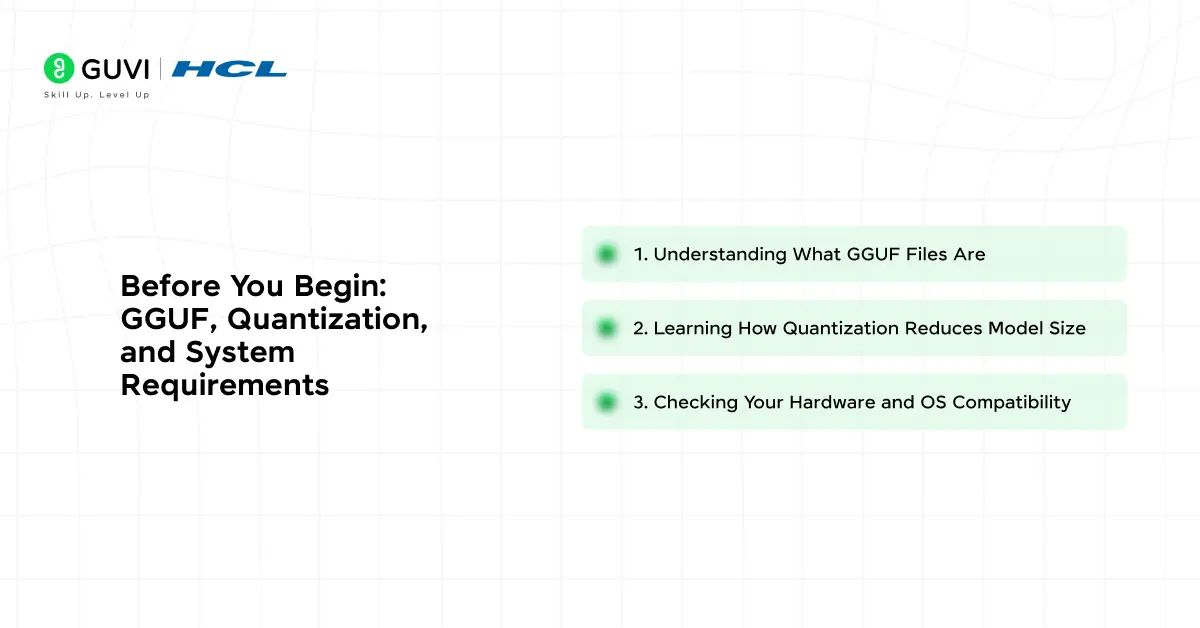
Two things to sort out before you install anything: understanding the GGUF model format that llama.cpp uses, and knowing whether your machine can handle the model size you want to run. Getting these right upfront saves you from downloading the wrong file or running out of memory mid-session.
1. Understanding What GGUF Files Are
Every LLaMA model you download for llama.cpp comes as a GGUF file. GGUF is a binary format that stores the model weights, tokenizer, architecture, and configuration all in one self-contained file. It was introduced in 2023 by the llama.cpp project to replace the older GGML format.
It has since become the standard format across the local AI ecosystem. Before GGUF, you needed multiple files to load a model. Now everything ships in one file, which makes downloading and running LLaMA models much simpler.
2. Learning How Quantization Reduces Model Size
What makes GGUF especially powerful is quantization. Quantization reduces the precision of the model weights, which cuts down memory usage and increases inference speed with only a small tradeoff in output quality.
In plain numbers: a raw LLaMA 3 8B model in full precision takes around 16GB of memory. A Q4_K_M quantized version of the same model takes around 5GB and runs noticeably faster.
The output is nearly indistinguishable for most tasks. Here is a quick reference for the most common quantization levels you will see on Hugging Face:
| Quantization | Size on Disk | Quality | Best For |
| Q2_K | Smallest | Low | Very limited RAM, testing only |
| Q3_K_M | Very small | Moderate | RAM under 6GB, fast responses |
| Q4_0 | Small | Good | General use, CPU inference |
| Q4_K_M | Small | Very good | Best balance, recommended default |
| Q5_K_M | Medium | Excellent | Coding, reasoning, quality-critical tasks |
| Q8_0 | Large | Near-original | Abundant VRAM, maximum quality |
Did you know that a quantized 7B model running on your laptop can match the quality of early ChatGPT-3.5 on many tasks, at zero ongoing cost?
3. Checking Your Hardware and OS Compatibility
You do not need a powerful machine to get started. Here is what RAM and VRAM you need based on the model size you want to run:
- 7B to 8B models (Q4_K_M): 8GB RAM minimum, 16GB recommended. Sweet spot for most laptops.
- 13B to 14B models (Q4_K_M): 16GB RAM minimum, 24GB recommended. Runs well on modern developer machines.
- 30B to 34B models (Q4_K_M): 32GB RAM minimum. Suitable for high-end desktops.
- 70B models (Q4_K_M): 48GB RAM or a multi-GPU setup required.
For GPU acceleration, 8GB of VRAM is enough to run 7B and 8B models fully on the GPU. llama.cpp supports NVIDIA CUDA, AMD ROCm, Apple Metal, and Vulkan so vendor does not matter. On the OS side, Linux, macOS (both Intel and Apple Silicon), and Windows are all fully supported.
llama.cpp Setup Guide: Install, Download, Run, and Query a Model
Here are the four steps to get llama.cpp running on your machine, from install to your first query.
Step 1: Install llama.cpp
Pick the command set for your OS. All three grab the latest release directly, so you’re never stuck on an old version.
macOS (using Homebrew, easiest option):
brew install llama.cpp
Linux (build from source):
git clone https://github.com/ggml-org/llama.cpp
cd llama.cpp
cmake -B build
cmake --build build --config Release
Windows (PowerShell, using the pre-built binary):
curl -L -o llama.zip https://github.com/ggml-org/llama.cpp/releases/latest/download/llama-bin-win-cpu-x64.zip
Expand-Archive llama.zip -DestinationPath llama.cpp
cd llama.cpp
Check the Releases page for the exact filename since builds are versioned, but the pattern above always gets you the newest one. Once this finishes, llama.cpp is installed — now it just needs something to run.
Step 2: Download a Model
Same command works on every OS here. llama.cpp reaches out to Hugging Face and pulls the model down for you, so there’s no manual downloading or file-moving involved.
llama-cli -hf bartowski/Meta-Llama-3.1-8B-Instruct-GGUF:Q4_K_M
Want a different model or size? Just swap the repo name:
| Model | Good For | RAM Needed |
|---|---|---|
| ggml-org/gemma-3-1b-it-GGUF | Low-spec laptops | 4GB+ |
| bartowski/Meta-Llama-3.1-8B-Instruct-GGUF:Q4_K_M | General chat | 8GB+ |
| bartowski/Qwen2.5-14B-Instruct-GGUF:Q4_K_M | Reasoning, analysis | 16GB+ |
With the model sitting on your disk, the next step is actually loading it up.
Step 3: Run the Model
This is where it gets real. The command below loads your model into memory and drops you straight into a chat session — and it’s identical across Windows, Mac, and Linux since you’re just calling the same binary.
llama-cli -m models/llama-3.1-8b-instruct-Q4_K_M.gguf
On Windows, just run this from inside your extracted folder, or point to the full path of the .exe. Give it a few seconds to load the weights, and you’ll land in an interactive prompt.
Step 4: Query the Model
Now for the part you actually wanted — asking it something. There are two ways to do this depending on what you’re building.
Option A — a single one-off prompt from the terminal:
llama-cli -m models/llama-3.1-8b-instruct-Q4_K_M.gguf -p "Explain quantum computing in two sentences" -n 200
Option B — start a server and hit it with curl, useful if you’re wiring it into a script or app:
llama-server -m models/llama-3.1-8b-instruct-Q4_K_M.gguf --port 8080
Then, from a separate terminal window:
curl http://localhost:8080/v1/chat/completions \
  -H "Content-Type: application/json" \
  -d '{"messages":[{"role":"user","content":"What is gradient descent?"}]}'
And that’s really the whole loop — install it once, download whatever model fits your machine, run it, and start asking it things. Once you’ve done it one time, repeating it for a new model takes about two minutes.
Memory Requirements: Can Your Laptop Run Llama 3.2?
Most laptops can run some version of Llama 3.2 — the question is just which size fits your hardware. It comes in a few different parameter counts, and the smaller ones were built specifically with limited hardware in mind.
Here’s what you need, based on model size:
| Model Size | Minimum RAM | Comfortable RAM | Runs On |
|---|---|---|---|
| 1B | 4GB | 8GB | Almost any laptop, even older ones |
| 3B | 6GB | 8GB | Standard laptops, no GPU needed |
| 8B | 8GB | 16GB | Most modern laptops |
| 70B | 40GB+ | 64GB+ | High-end desktops or multi-GPU setups |
A few things worth knowing before you pick a size:
- CPU-only works fine for 1B and 3B. No dedicated GPU required to get usable speed.
- Quantized versions cut memory use significantly. A Q4_K_M quantized 8B model needs roughly half the RAM of the full-precision version, with barely noticeable quality loss.
- VRAM helps but isn’t mandatory. A GPU with 6GB+ VRAM lets llama.cpp offload layers for faster responses, but everything still runs fine on CPU without one.
- Leave some headroom. On an 8GB machine, skip the 8B model — your OS and other apps need memory too, so it’ll be tight.
If you’re working with 8GB of RAM, the 1B or 3B model is the safer pick. On 16GB or more, the 8B model runs comfortably and gives noticeably better output.
Run Llama 3 vs Llama 2 Locally — Which Model to Pick?
If you’re choosing between the two, Llama 3 is the better pick for almost everyone starting out today. Llama 2 is still around and still works fine with llama.cpp, but Llama 3 improved on it in ways that actually matter for day-to-day use.

Here’s how they stack up:
| Factor | Llama 2 | Llama 3 |
|---|---|---|
| Reasoning quality | Good | Noticeably better |
| Context length | 4K tokens | Up to 128K tokens (varies by version) |
| Coding ability | Weaker | Much stronger |
| Instruction following | Decent | More reliable |
| Community GGUF support | Mature, widely available | Actively maintained, latest quants land fast |
A few things to factor in before deciding:
- Go with Llama 3 (or 3.1/3.2) if you want the best output quality. It handles longer conversations, follows instructions more consistently, and does noticeably better on coding and reasoning tasks.
- Stick with Llama 2 only if you have a specific reason to. Maybe you’re following an older tutorial, testing compatibility, or comparing outputs — otherwise there’s little reason to pick it over Llama 3 today.
- Hardware requirements are similar for same-sized models. An 8B Llama 3 model needs roughly the same RAM as a 7B Llama 2 model, so switching between them won’t strain your setup differently.
- Fine-tunes matter more than the base model sometimes. Community fine-tunes of both versions exist for specific tasks (coding, roleplay, summarization), so check what’s available for your use case before committing to a version.
For most people running models locally in 2026, Llama 3.1 or 3.2 is the practical default — better performance, active support, and no real downside compared to Llama 2.
Launching the llama.cpp Local Server
The server mode turns llama.cpp into a local API that any app, browser, or script can talk to, including ones built for OpenAI. This is where llama.cpp goes from a personal chat tool to something you can build real applications on top of.
1. Starting the Server with llama-server
The command below starts a local HTTP server on port 8080. Think of this as turning your machine into a mini ChatGPT server that only you can access. Once it is running, open your browser at http://localhost:8080 to see the built-in chat interface, or send API requests to http://localhost:8080/v1/chat/completions from any app.
llama-server -m model.gguf –port 8080
The built-in web UI gives you a clean chat interface similar to ChatGPT, running entirely in your browser with no internet required.
Imagine pointing every AI-powered tool you use at your own local server instead of paying per token to OpenAI. Every request stays on your machine. Every response is free.
2. Managing Multiple Models with Router Mode
If you have several models saved locally and want to switch between them without restarting the server, start it in router mode. The command below tells the server to auto-discover all models in your models folder. You do not specify a model upfront. Instead, the server loads whichever model is requested when the first API call arrives.
llama-server –models-dir ./models
This means you can switch between a coding model, a general chat model, and a reasoning model just by changing the model name in your API call, with no server restart needed.
3. Calling the Server from Python
Once your server is running, any Python script can talk to it using the standard OpenAI library. The trick is to point the library at your local server address instead of OpenAI’s servers. The api_key field is required by the library but is not checked locally, so any string will work.
The four lines below connect to the server, send a question about your LLaMA models, and print the response.
from openai import OpenAI
client = OpenAI(base_url=”http://localhost:8080/v1“, api_key=”not-needed”)
response = client.chat.completions.create(model=”local-model”, messages=[{“role”: “user”, “content”: “What is gradient descent?”}])
print(response.choices[0].message.content)
This makes llama.cpp a drop-in local replacement for the OpenAI API in any Python project, with zero API costs and full offline capability.
Quantizing Your Own Models with llama.cpp
Most of the popular LLaMA models on Hugging Face already have GGUF versions available, so you can usually skip this step entirely. But if you find a model that only ships in the original Hugging Face format, or if you want a custom quantization level that no one has published yet, you can convert and quantize it yourself using tools that come bundled with llama.cpp.
The process has two steps: first convert the model to a full-precision GGUF file, then quantize it down to the size you need.
1. Converting a Hugging Face Model to GGUF
Before you can quantize, you need to convert the LLaMA model from its original Hugging Face format into a full-precision GGUF file. Start by installing the Python libraries that the conversion script depends on.
This command reads the requirements file that comes bundled with llama.cpp and installs everything needed:
pip install -r requirements.txt
Now run the conversion script. The command below takes a LLaMA 3.1 8B model stored in a folder called ./models/llama-3.1-8b and converts it into a single FP16 GGUF file.
The –outtype f16 flag means full precision, and –outfile sets the name of the output file:
python3 convert_hf_to_gguf.py ./models/llama-3.1-8b/ –outtype f16 –outfile ./models/llama-3.1-8b-f16.gguf
This creates a full-precision GGUF file ready for quantization. It will be large, usually 14 to 16GB for an 8B model, which is why the next step matters.
2. Quantizing the GGUF File to a Smaller Format
Now shrink the full-precision file into a quantized version you can actually run on consumer hardware. The command below takes the FP16 GGUF file you just created and compresses it to Q4_K_M format. The three arguments are: the input file, the output file name, and the quantization type to use.
./llama-quantize ./models/llama-3.1-8b-f16.gguf ./models/llama-3.1-8b-Q4_K_M.gguf Q4_K_M
The process takes a few minutes on most machines. When it completes, you will have a quantized model file around 5GB in size, ready to run with llama-cli or llama-server.
3. Using Hugging Face Tools to Skip Manual Conversion
If you do not want to quantize manually, Hugging Face provides browser-based tools:
- GGUF-my-repo: Upload any Hugging Face model and convert it to GGUF with a chosen quantization level directly in the browser. No local setup required.
- GGUF-editor: Edit GGUF metadata in the browser without rebuilding the model.
- Inference Endpoints: Use Hugging Face Inference Endpoints to directly host llama.cpp in the cloud when you need a hosted version of the same local setup.
Tips for Getting the Most Out of llama.cpp
Getting llama.cpp installed and a model running is the easy part. Getting fast, accurate, and consistent results from your local model takes a bit more know-how. The flags you use, the model you choose, and the way you write your prompts all make a measurable difference in speed and quality. These are the tips that separate a frustrating local AI setup from one that genuinely replaces cloud tools for day-to-day work.
- Start with Q4_K_M: It is the best all-round quantization for most hardware and most tasks. Only go lower if you are genuinely RAM-constrained.
- Match threads to physical cores: Set -t to the number of physical CPU cores, not logical threads. Hyperthreading does not help LLM inference and can actually slow it down.
- Use GPU offloading even partially: If you have 4GB or more of VRAM, offloading even 10 to 20 layers with -ngl 20 gives a meaningful speed boost over CPU-only.
- Write a system prompt: Use -sys “You are a helpful assistant specialized in Python programming” to give the model a persistent role before your conversation starts.
- Keep context size realistic: A context of 4096 tokens is enough for most conversations. Larger contexts use more RAM and slow inference. Only increase if you are summarizing long documents.
- Save your best commands as aliases: Once you find the right combination of flags for your hardware, save it as a shell alias so you do not have to retype it every session.
- Use llama-server for integrations: If you are building an app or want to use a local model inside VS Code with Continue or any OpenAI-compatible extension, the server mode is far more flexible than the CLI.
Conclusion
Every AI tool you use through a cloud API comes with invisible costs: your prompts are logged, your usage is metered, and your data leaves your machine. llama.cpp removes all three of those constraints at once.
The setup takes less than 30 minutes. The models are free. The privacy is absolute. And the performance on modern hardware in 2026 is genuinely impressive, especially for 7B and 8B models that punch well above their weight class.
Whether you are a developer who wants a local coding assistant, a researcher who needs to process sensitive documents privately, or just someone curious about running your own AI, llama.cpp is the most direct path to getting there. Install it, download a model, and run your first prompt. Everything else builds from that single moment.
FAQs
1. What is llama.cpp used for?
llama.cpp is used to run large language models like LLaMA, Qwen, Mistral, and Gemma locally on your own machine without cloud APIs, GPU servers, or usage fees. It is commonly used for private chatbots, local coding assistants, offline document summarization, and building AI-powered apps.
2. Do I need a GPU to use llama.cpp?
No. llama.cpp is designed to run on CPUs without any GPU. A GPU significantly improves speed, but 7B and 8B models run acceptably on a modern CPU at 2 to 5 tokens per second, which is usable for most tasks.
3. What is a GGUF file and where do I get one?
A GGUF file is a compressed model file format used by llama.cpp. It stores the model weights, tokenizer, and metadata in a single file. You can download ready-to-use GGUF models from Hugging Face by searching for any model name followed by GGUF.
4. What is the best quantization level for beginners?
Q4_K_M is the recommended starting point for most users. It offers the best balance between file size, RAM usage, inference speed, and output quality. Only go lower if your machine has less than 6GB of free RAM.
5. Can I use llama.cpp with Python?
Yes. You can either use the llama-cpp-python library for direct Python bindings, or start the llama-server and call it using the standard OpenAI Python library pointed at your local server address. The server approach works with any language, not just Python.
Success Stories











Did you enjoy this article?