Apply Now Apply Now Apply Now
header_logo
Post thumbnail
ARTIFICIAL INTELLIGENCE AND MACHINE LEARNING

How to Create and Use an OpenAI ChatGPT API Key (2026)

By Jebasta

If you have ever wanted to bring the power of ChatGPT into your own app, website, or workflow, the OpenAI API is exactly where you begin. The API key is the password that lets your code talk to ChatGPT directly. Without it, nothing works. With it, you can build your own chatbots, automate repetitive writing tasks, summarise documents, and add AI features to any project you are working on.

This guide is written for complete beginners. No coding background required. We will walk through every step, explain every technical term the moment it comes up, and make sure you understand not just what to do but why you are doing it.

Quick Answer

Go to platform.openai.com, sign up, navigate to Settings and then API Keys, and click Create new secret key. Copy the key the moment it appears. OpenAI shows it only once and will never display it again.

Table of contents


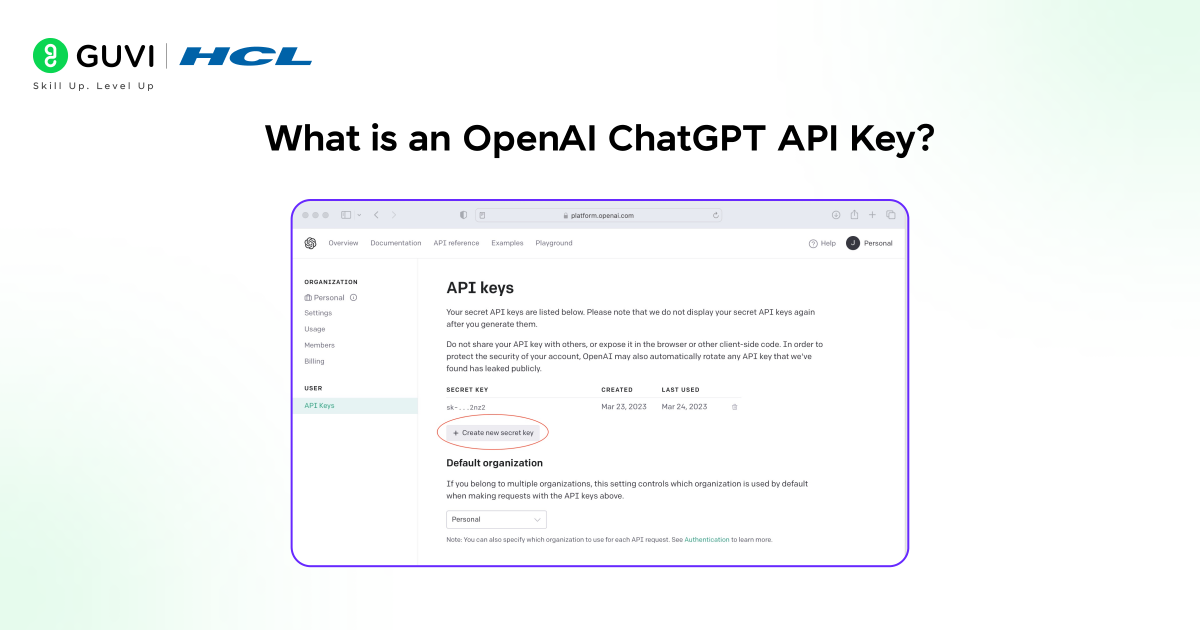
  1. What Is an OpenAI ChatGPT API Key?
  2. Is a ChatGPT Account the Same as an OpenAI API Account?
  3. Who Should Use the OpenAI API?
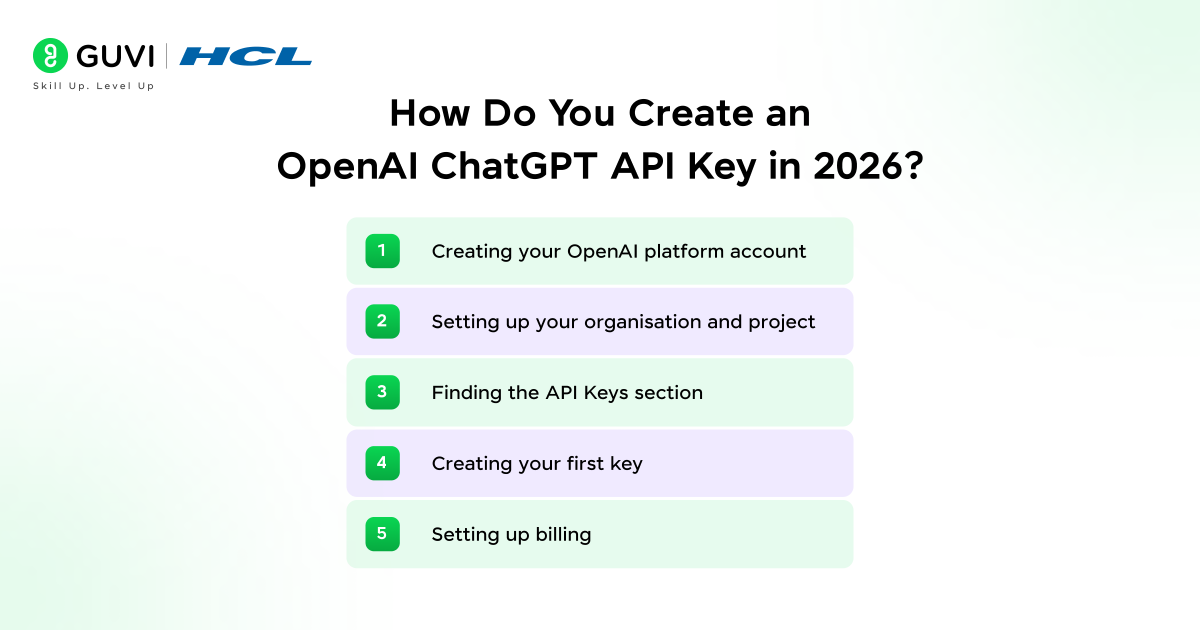
  4. How Do You Create an OpenAI ChatGPT API Key in 2026?
    • Creating your OpenAI platform account
    • Setting up your organisation and project
    • Finding the API Keys section
    • Creating your first key
    • Setting up billing
  5. How Do You Use an OpenAI ChatGPT API Key in Your Project?
    • Storing your key as an environment variable
    • Installing the OpenAI SDK in your language of choice
    • Testing your key quickly with a curl command
    • Making your first API call in Python
  6. Which OpenAI Model Should You Use With Your API Key in 2026?
  7. What Are Usage Tiers and Why Do They Affect You?
  8. What Do You Do When Something Goes Wrong?
    • Access denied error (Error 401: Unauthorized)
    • Too many requests error (Error 429: Rate Limit Exceeded)
    • Server unavailable error (Error 503: Service Unavailable)
    • Key works on your computer but not when you deploy your app (Environment Variable Missing)
  9. How Do You Keep Your OpenAI API Key Secure?
  10. Tips for Using Your OpenAI ChatGPT API Key Effectively
    • 💡 Did You Know?
  11. Conclusion
  12. FAQs
    • Is the OpenAI ChatGPT API key free?
    • Can I use the same key across multiple projects?
    • What happens if someone else gets my API key?
    • What is the Responses API and should I use it?
    • Why is my brand new key giving me errors already?

What Is an OpenAI ChatGPT API Key?

Think of an OpenAI ChatGPT API key as a personalised password for your application. Every time your code wants to ask ChatGPT a question, it sends this key along with the request. OpenAI reads the key, confirms it belongs to a real account with valid payment on file, and then responds.

Without the key, OpenAI has no way of knowing who is asking or whether they should be allowed access. It is the same reason a hotel door does not open without a room card. The key is also how OpenAI counts how much you have used and bills you accordingly at the end of the month.

Here is a question worth thinking about: if an API key is like a password, what do you think would happen if someone else got hold of yours?

Is a ChatGPT Account the Same as an OpenAI API Account?

This confuses almost everyone when they first start. The short answer is no, they are two completely separate things.

Here is the key difference in simple terms:

  • ChatGPT at chat.openai.com is the website where you type messages and get replies. It is meant for regular users.
  • The OpenAI API at platform.openai.com is for developers. It lets your own code talk to the same AI behind the scenes.
  • Paying for ChatGPT Plus does not give you API access. They are billed separately.
  • You can use the same email address to sign up for both, but they are treated as independent accounts.

So if you have been using ChatGPT for a while and now want to build something with it, you still need to sign up at platform.openai.com separately.

Take your ChatGPT skills to the next level at absolutely no cost!

Through HCL GUVI’s Bharat AI Initiative, powered by OpenAI, you can now learn advanced ChatGPT skills, like better prompting techniques, in English, Hindi, Tamil, Telugu, and Marathi.

Start Your Free AI Journey

Who Should Use the OpenAI API?

You do not have to be a professional developer to use the API. Here are the kinds of people who benefit most:

  • Developers who want to add AI features to their apps or websites
  • Business owners who want to automate customer support, emails, or content writing
  • Students building AI projects for coursework or personal portfolios
  • Educators creating interactive or personalised learning tools
  • Curious beginners who just want to understand how AI products are actually built

If you have ever thought “I wish ChatGPT could do this inside my own tool”, the API is exactly how you make that happen.

How Do You Create an OpenAI ChatGPT API Key in 2026?

The whole process takes less than five minutes. Follow these steps one by one.

1. Creating your OpenAI platform account

Open your browser and go to platform.openai.com. Click Sign up in the top right corner. You can register with your email address or sign in with a Google, Microsoft, or Apple account. OpenAI will send you a verification email. Click the link inside it to confirm your account.

You may also be asked to verify your phone number. This is just a security step to confirm you are a real person and not a bot.

MDN

2. Setting up your organisation and project

When you log in for the first time, OpenAI will guide you through a short setup. You will be asked to name an organization, which is just a label for your account. You can name it anything, like your own name or the name of your project.

You will also create your first project. Think of a project as a folder that keeps your keys and usage organised. Name it something meaningful like learning-api or my-chatbot so you can identify it later.

Think of the organization as your business name and the project as one specific product or experiment you are running inside it.

3. Finding the API Keys section

Once you are inside the dashboard, look at the left sidebar and click Settings. Then click API keys. You will land on a page that lists all the keys you have created. If this is your first time, the list will be empty.

You will see columns showing each key’s name, which project it belongs to, when it was created, and when it was last used.

4. Creating your first key

Click the button that says Create new secret key. A small window will pop up asking you for three things:

  • Name — give it a clear label like first-test-key or my-project-key so you remember what it is for
  • Permissions — for now, choose full access. You can restrict this later once you understand what you need.
  • Project — select the project you just created

Click Create secret key. OpenAI will now show you the key one time only. It will look something like sk-proj-abc123xyz… followed by a very long string of letters and numbers.

Copy it right now and paste it somewhere safe, like a notes app, a password manager, or a private document. Once you close this window, the key is hidden forever and you cannot retrieve it again.

5. Setting up billing

New accounts usually get a small free credit to start experimenting. Once that runs out, you need to add a payment method or your requests will stop working.

Go to Settings and then Billing. Click Add payment method and enter your card details. Do not worry, you will not be charged a flat fee. OpenAI only charges for what you actually use, based on how much text you send and receive.

While you are on the Billing page, do two important things right away:

  • Set a monthly spending limit so you are never surprised by a large bill, even if something goes wrong
  • Turn on auto recharge if you want your credit balance to refill automatically so your app never goes offline unexpectedly

Imagine sending 10,000 messages by accident because of a bug in your code, with no spending limit set. Set the cap first. It takes 30 seconds and can save you a lot of stress.

How Do You Use an OpenAI ChatGPT API Key in Your Project?

Having your key is just the beginning. This section walks you through four things: storing your key safely so it never gets exposed, installing the OpenAI library in your preferred language, running a quick one-line test to confirm everything is working, and finally making your first real API call in Python with a line-by-line breakdown of what the code does.

1. Storing your key as an environment variable

Your API key is sensitive. If you paste it directly into your code and then share that code on GitHub or anywhere public, anyone who finds it can use your account and rack up charges on your behalf. Automated bots scan GitHub all day specifically looking for exposed keys.

The safe approach is to store your key as an environment variable. This means saving it in a special place on your computer that your code can read privately, without it ever appearing in the actual code file.

Here is how to do it on each system:

  • On Mac or Linux, open your terminal and add the line export OPENAI_API_KEY=”paste-your-key-here” to a file called ~/.zshrc or ~/.bashrc, then run source ~/.zshrc to activate it
  • On Windows, search for Edit the system environment variables in the Start menu, open it, and add a new variable called OPENAI_API_KEY with your key as the value
  • For any project folder, you can create a file called .env and write OPENAI_API_KEY=paste-your-key-here inside it. Make sure to also create a file called .gitignore and add .env to it so the file is never uploaded anywhere

2. Installing the OpenAI SDK in your language of choice

OpenAI provides ready-made libraries in several programming languages so you do not have to build everything from scratch. A library is a collection of pre-written code that handles the complicated parts for you.

  • If you use Python, open your terminal and run pip install openai python-dotenv
  • If you use Node.js, run npm install openai dotenv

Once installed, the library will automatically look for your OPENAI_API_KEY in your environment variables so you do not need to type it into your code manually.

3. Testing your key quickly with a curl command

Before writing a full program, you can test whether your key is active in seconds. Open your terminal, make sure your environment variable is set, and run this single line:

curl https://api.openai.com/v1/responses -H “Content-Type: application/json” -H “Authorization: Bearer $OPENAI_API_KEY” -d ‘{“model”: “gpt-5”, “input”: [{“role”: “user”, “content”: “Say hello.”}]}’

If ChatGPT replies with something like “Hello! How can I help you today?”, your key is working perfectly. If you get an access denied message, your key is incorrect or billing is not yet set up.

4. Making your first API call in Python

Now for the exciting part. Create a new file on your computer called hello_chatgpt.py and write the following into it:

import os

from dotenv import load_dotenv

from openai import OpenAI

load_dotenv()

client = OpenAI()

response = client.responses.create(model=”gpt-5″, input=[{“role”: “user”, “content”: “Explain what an API key is in simple terms.”}])

print(response.output_text)

Here is what each part does: The first two lines import the tools you need. load_dotenv() reads your .env file and loads your key. client = OpenAI() creates a connection to OpenAI using your key automatically. The responses.create part sends your question to ChatGPT. print(response.output_text) displays the answer in your terminal.

Run the file by typing python hello_chatgpt.py in your terminal. You will see ChatGPT’s answer appear within a second or two.

Feels like magic the first time you run it, does it not? That is your own code talking directly to one of the most advanced AI systems in the world.

Do check out HCL GUVI’s AI/ML Course if you want to move beyond basics and learn AI and ML through real-world projects. The program focuses on core concepts like machine learning, deep learning, and model deployment with hands-on practice and mentorship, helping you build practical industry-ready skills.

Which OpenAI Model Should You Use With Your API Key in 2026?

When you send a request, you have to tell OpenAI which AI model to use. Think of models like different versions of ChatGPT, each with a different price and capability level. Here is the current lineup as of March 2026:

ModelBest ForInput per 1M TokensOutput per 1M TokensContext Window
GPT-5Most everyday tasks, great quality and speed$1.25 (₹115)$10.00 (₹925)400K
GPT-5 MiniHigh-volume tasks where you want to save money$0.25 (₹23)$2.00 (₹185)128K
GPT-5.2Complex research, expert-level reasoning$1.75 (₹162)$14.00 (₹1,295)200K
GPT-5.4The most demanding tasks, very long documents$2.50 (₹231)$15.00 (₹1,388)1.1M
GPT-4.1 NanoSimple, repetitive tasks at the lowest cost possible$0.10 (₹9)$0.40 (₹37)64K

A token is roughly four characters of text, so one word is approximately one to two tokens. Processing a short paragraph typically costs a fraction of a cent.

If you are just starting out, GPT-5 Mini is the safest choice. It is affordable, fast, and capable enough to handle almost anything a beginner would want to try.

What Are Usage Tiers and Why Do They Affect You?

OpenAI limits how many requests you can send per minute. This is called a rate limit, and it exists so the system is not overwhelmed. The limits you get depend on your usage tier, which is determined by how much credit you have spent over time.

Here is what that looks like in plain numbers:

TierHow to Reach ItRequests Per MinuteTokens Per Minute
FreeJust signed up340,000
Tier 1Spend $5 (₹462)500200,000
Tier 2Spend $50 (₹4,625)5,0002,000,000
Tier 3Spend $100 (₹9,250)5,0004,000,000
Tier 4Spend $250 (₹23,125)10,00010,000,000
Tier 5Spend $1,000 (₹92,500)10,00030,000,000

Most beginners start at Tier 1 after adding their first $5 (₹462) of credit. If you are just testing a project, Tier 1 is more than enough to get started. You will only need higher tiers if you are building something used by many people at once.

Here is a common beginner trap: your key looks valid, you set up your code correctly, and yet your requests keep failing. Nine times out of ten it is because you are still on the free tier with almost no request allowance. Add $5 (₹462) of credit and the problem goes away immediately.

What Do You Do When Something Goes Wrong?

Errors happen to everyone, including experienced developers. The good news is that most API errors fall into just a few categories and the fixes are straightforward.

1. Access denied error (Error 401: Unauthorized)

When you see a 401 error in your terminal or response, it means OpenAI does not recognise your key. The number 401 is the standard code for “you are not allowed in.” Common reasons and fixes:

  • You copied the key incorrectly, perhaps with an extra space at the start or end: go back and copy it fresh
  • The key was deleted or expired: create a new one from the API Keys page
  • The key’s permissions do not match what your code is trying to do: check the permission setting when you create the key

2. Too many requests error (Error 429: Rate Limit Exceeded)

A 429 error means you are sending requests faster than your current tier allows. Think of it like a queue at a counter — you have been told to slow down. Fixes include:

  • Add a payment method if you have not yet, because the free tier allows almost nothing
  • Add a short pause between requests in your code so they do not pile up
  • Purchase a small credit top-up to move to Tier 1 and unlock a much higher limit

3. Server unavailable error (Error 503: Service Unavailable)

A 503 error has nothing to do with your key at all. It simply means OpenAI’s servers are briefly overloaded. Think of it as a busy phone line. Wait a few seconds and try again. This happens very rarely and resolves on its own.

4. Key works on your computer but not when you deploy your app (Environment Variable Missing)

This is more common than you might think. The most likely cause is that your live server does not have the environment variable set up. Make sure you add OPENAI_API_KEY as an environment variable in your hosting platform’s settings, not just on your own machine.

How Do You Keep Your OpenAI API Key Secure?

1. Store it safely, never in your code

Use environment variables for local development and a proper secrets manager for live production apps. Tools like AWS Secrets Manager, Google Cloud Secret Manager, or Doppler are designed exactly for this. They keep your key encrypted and inject it into your app automatically at runtime.

2. Restrict what each key can do

When you create a new key, you can limit it to only the actions it needs. A key used only for chat does not need permissions to manage billing or train models. Restricting access means that even if the key leaks, the damage is limited.

3. Delete and replace keys the moment something feels off

If you accidentally share a key, push it to GitHub, or simply suspect it may have been exposed, delete it immediately from platform.openai.com/api-keys and create a fresh one. Replacing a key takes less than a minute. Dealing with unexpected charges takes much longer.

Think of your API key the way you think of your bank card PIN. You would not write it on a sticky note and leave it at your desk. Treat the key with the same care.

Tips for Using Your OpenAI ChatGPT API Key Effectively

  • Always name your keys clearly. You might have ten keys a year from now. A name like blog-generator-prod is far more useful than a blank label when you are trying to figure out what to revoke.
  • Create a new key for every new project. One key per project keeps your usage clean, your billing clear, and your risk contained if something goes wrong.
  • Set a spending limit before your first real test. Not after. Not later. Before.
  • Use GPT-5 Mini while you are still learning. At just $0.25 (₹23) per million input tokens, it costs a fraction of the more powerful models and will help you understand how the API works before you start spending more.
  • Read your usage dashboard once a week. The OpenAI platform shows exactly how many tokens you have used and what it costs. It takes 30 seconds and keeps you in control.

💡 Did You Know?

  • One token is roughly four characters of English text, which means a single paragraph costs only a fraction of a cent to process. Most beginner experiments cost less than a few rupees in total.
  • OpenAI now lets you create keys that are restricted to specific projects and models, which means you can give a colleague access to one part of your account without exposing everything else.
  • GPT-5.2 became the first OpenAI model to perform at or above expert human level on professional knowledge tasks, according to OpenAI’s own benchmark evaluations released in early 2026.

Conclusion

Your OpenAI ChatGPT API key is the first real step from using AI to building with it. Everything you just read, the account setup, the key generation, the first API call, the model choice, and the error fixes, is genuinely everything you need to get started.

Set up your account, grab your key, run your first test call, and see ChatGPT respond to your own code for the first time. That moment is worth every step it took to get there. What you build from that point is entirely up to you.

FAQs

1. Is the OpenAI ChatGPT API key free?

New accounts receive a small free credit to start with. After that it is pay-as-you-go with no monthly fee. You only pay for what you use.

2. Can I use the same key across multiple projects?

You can, but creating a separate key per project keeps your usage cleaner and makes it easier to revoke just one key if something goes wrong.

3. What happens if someone else gets my API key?

Revoke it immediately at platform.openai.com/api-keys and create a new one. Check your usage history for any activity you did not make. Act quickly as exposure can lead to charges within minutes.

4. What is the Responses API and should I use it?

It is OpenAI’s current recommended way to send requests as of 2026, replacing the older Chat Completions method. Use it for all new projects as it supports more features natively.

MDN

5. Why is my brand new key giving me errors already?

Most likely you are on the free tier which has very low limits. Add a payment method and top up with $5 (₹462) of credit to unlock Tier 1, which gives you a much more usable request allowance.

Success Stories

Did you enjoy this article?

Schedule 1:1 free counselling

Similar Articles

Loading...
Get in Touch
Chat on Whatsapp
Request Callback
Share logo Copy link
Table of contents Table of contents
Table of contents Articles
Close button

  1. What Is an OpenAI ChatGPT API Key?
  2. Is a ChatGPT Account the Same as an OpenAI API Account?
  3. Who Should Use the OpenAI API?
  4. How Do You Create an OpenAI ChatGPT API Key in 2026?
    • Creating your OpenAI platform account
    • Setting up your organisation and project
    • Finding the API Keys section
    • Creating your first key
    • Setting up billing
  5. How Do You Use an OpenAI ChatGPT API Key in Your Project?
    • Storing your key as an environment variable
    • Installing the OpenAI SDK in your language of choice
    • Testing your key quickly with a curl command
    • Making your first API call in Python
  6. Which OpenAI Model Should You Use With Your API Key in 2026?
  7. What Are Usage Tiers and Why Do They Affect You?
  8. What Do You Do When Something Goes Wrong?
    • Access denied error (Error 401: Unauthorized)
    • Too many requests error (Error 429: Rate Limit Exceeded)
    • Server unavailable error (Error 503: Service Unavailable)
    • Key works on your computer but not when you deploy your app (Environment Variable Missing)
  9. How Do You Keep Your OpenAI API Key Secure?
  10. Tips for Using Your OpenAI ChatGPT API Key Effectively
    • 💡 Did You Know?
  11. Conclusion
  12. FAQs
    • Is the OpenAI ChatGPT API key free?
    • Can I use the same key across multiple projects?
    • What happens if someone else gets my API key?
    • What is the Responses API and should I use it?
    • Why is my brand new key giving me errors already?