


UI/UX Designing Articles
What is a Design System? The Ultimate Guide to Building Consistent UIs
What is UX Writing? A Complete Guide to Mastering Microcopy and Content Design
What is a UX Audit? A Complete & Best Guide to User Experience Evaluation
How HCL GUVI Zen Class Helps You Build a Job-Ready UI/UX Portfolio


Get In Touch For Details! Request More Information

Shadcn/ui Component Tutorial: Build Your First UI Component
Aug 13, 2026 3 Min Read 824 Views
(Last Updated)
Table of contents
- TL;DR Summary
- What Is Shadcn/ui, Really?
- Why Developers Are Switching to Shadcn/ui
- Before You Start: What You'll Need
- Step-by-Step: Setting Up Shadcn/ui
- Step 1: Create or Open Your React Project
- Step 2: Initialize Shadcn/ui
- Step 3: Add Your First Component
- Step 4: Use the Component
- Step 5: Customize the Theme
- Shadcn/ui vs Other Component Libraries
- What to Do Next
- Key Takeaways
- Conclusion
- FAQs
- Is shadcn/ui free to use?
- Do I need Tailwind CSS to use shadcn/ui?
- Can I use shadcn/ui with plain React, not just Next.js?
- Is shadcn/ui good for beginners?
- How is shadcn/ui different from a typical npm component library?
- Does shadcn/ui support dark mode?
- Can I customize shadcn/ui components after adding them?
- Is shadcn/ui accessible out of the box?
TL;DR Summary
- Shadcn/ui is not a component library you install, it’s a collection of components you copy directly into your project
- You get full control over the code, styling, and behavior since nothing lives in node_modules
- It’s built on Radix UI primitives and styled with Tailwind CSS
- The CLI handles setup, theming, and adding new components in one command
- Beginners can have a working component in under 10 minutes
Shadcn/ui is a set of reusable React components built on Radix UI and Tailwind CSS that you copy into your own codebase instead of installing as a package. This gives you complete ownership over the code, so you can customize every detail without fighting a library’s defaults. It’s become a go to choice for developers who want speed without giving up control.
What Is Shadcn/ui, Really?

Most component libraries, like Material UI or Chakra UI, ship as npm packages. You install them, import components, and you’re stuck working within their styling system. Shadcn/ui flips that model. When you add a component, the CLI copies the actual source code into your project, usually inside a components/ui folder.
Pro Tip: Because the code lives in your project, you can open the Button component file and change literally anything, padding, hover states, even the underlying HTML element, without any “ejecting” or workaround hacks.
Shadcn/ui isn’t technically a component library at all. Its creator, Shadcn, describes it as a collection of reusable components you can copy and paste, which is part of why it grew so fast among React and Next.js developers.
Why Developers Are Switching to Shadcn/ui
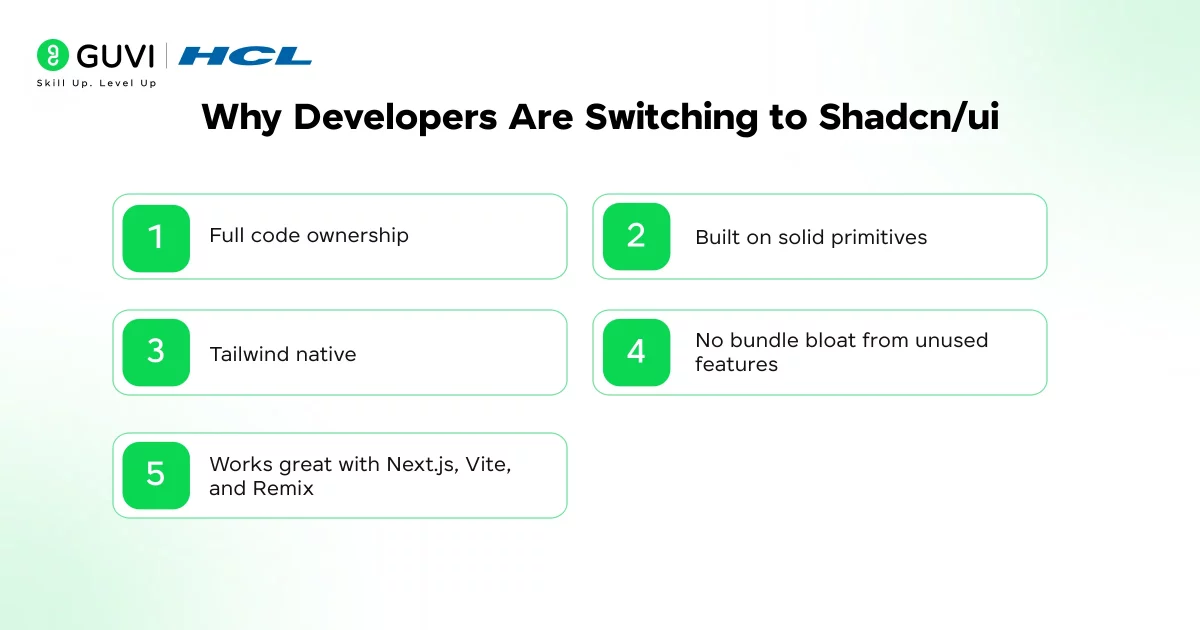
If you’re choosing a UI approach for a new project, here’s what makes shadcn/ui stand out:
- Full code ownership: No black box components. You see and control everything.
- Built on solid primitives: It uses Radix UI underneath, which handles accessibility, keyboard navigation, and focus management for you.
- Tailwind native: Styling uses Tailwind classes, so if you already know Tailwind, you already know how to customize these components.
- No bundle bloat from unused features: You only add the components you actually use.
- Works great with Next.js, Vite, and Remix: It’s framework flexible, not locked to one setup.
Before You Start: What You’ll Need
You don’t need to be an advanced developer to follow this tutorial, but you should be comfortable with:
- Basic React (components, props, JSX)
- A little Tailwind CSS familiarity (not mandatory, but helpful)
- Node.js installed on your machine
⚠️ Warning: Shadcn/ui requires Tailwind CSS to be set up in your project first. If you’re starting from scratch, the CLI will configure this for you automatically during initialization.
Step-by-Step: Setting Up Shadcn/ui
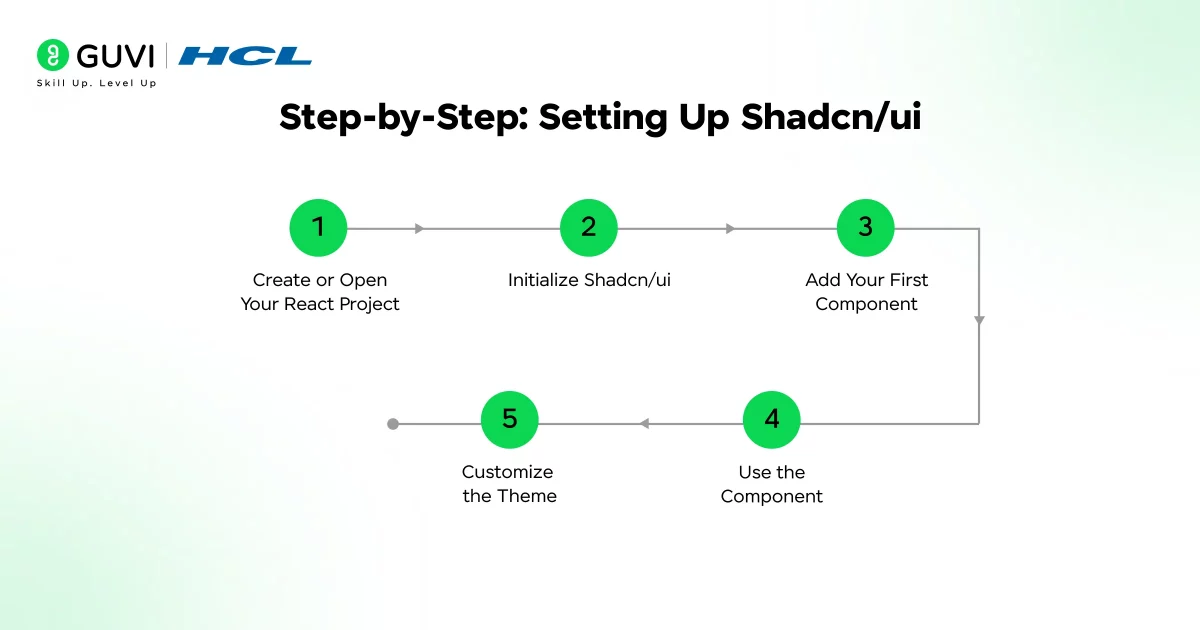
Step 1: Create or Open Your React Project
If you don’t have a project yet, create one with Next.js:
npx create-next-app@latest my-app
cd my-app
Step 2: Initialize Shadcn/ui
Run the init command. This sets up Tailwind, creates a config file, and asks you a few setup questions like your preferred color scheme and base path.
npx shadcn@latest init
You’ll be asked things like which style you prefer (Default or New York), your base color, and where components should live.
Step 3: Add Your First Component
Let’s add a button. Instead of installing a package, you run this:
npx shadcn@latest add button
This drops the actual Button component code into components/ui/button.tsx. Open that file. You’ll see real, readable code, not a compiled bundle.
Step 4: Use the Component
import { Button } from "@/components/ui/button"

export default function Home() {

  return <Button variant="outline">Click Me</Button>

}
📊 Data Point: As of 2026, shadcn/ui’s component registry has expanded well beyond buttons and cards to include data tables, command menus, charts, and full form components, making it viable for production-grade dashboards, not just landing pages.

Step 5: Customize the Theme
Open your globals.css or tailwind.config.js. Shadcn/ui uses CSS variables for theming, so changing your brand colors means updating a handful of variables, not rewriting components.
✅ Best Practice: Stick to the CSS variable approach for colors instead of hardcoding hex values inside component files. It keeps your design system consistent if you ever rebrand.
Shadcn/ui vs Other Component Libraries
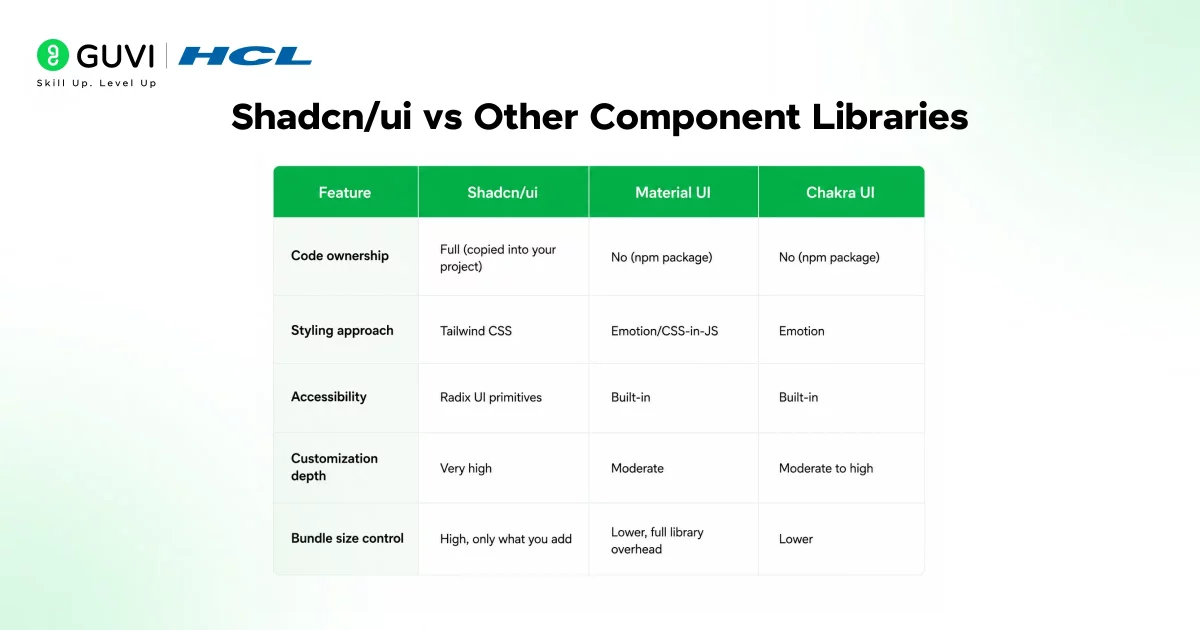
| Feature | Shadcn/ui | Material UI | Chakra UI |
| Code ownership | Full (copied into your project) | No (npm package) | No (npm package) |
| Styling approach | Tailwind CSS | Emotion/CSS-in-JS | Emotion |
| Accessibility | Radix UI primitives | Built-in | Built-in |
| Customization depth | Very high | Moderate | Moderate to high |
| Bundle size control | High, only what you add | Lower, full library overhead | Lower |
What to Do Next
Once you’ve added a few components, try building a small real feature, like a login form using the Form, Input, and Button components together. This is where shadcn/ui’s real strength shows up, since every piece works together but stays editable.
If you want to learn all about UI and it’s librarires through a structured and mentored course with the integration of AI, then consider enrolling in HCL GUVI’s AI-Powered UI/UX & Product Design Fellowship Programme, where you can master UX research, Figma, AI-powered prototyping, and real-world UI design through live classes and build a portfolio that gets you hired.
Key Takeaways
- Shadcn/ui gives you components as source code, not as a dependency
- It pairs Radix UI’s accessibility with Tailwind’s styling flexibility
- The CLI makes setup and component addition fast, even for beginners
- You get full design control without building components from zero
- It scales from simple landing pages to complex dashboard UIs
Conclusion
Shadcn/ui hits a sweet spot that most component libraries miss: speed without sacrificing control. You’re not locked into someone else’s design decisions, and you’re not starting from a blank file either. For beginners learning React UI patterns, and for intermediate developers tired of fighting library overrides, it’s worth building your next project around.
FAQs
1. Is shadcn/ui free to use?
Yes, it’s completely free and open source. You only pay for the tools you use alongside it, like hosting or paid icon packs.
2. Do I need Tailwind CSS to use shadcn/ui?
Yes, shadcn/ui components are styled using Tailwind classes, so Tailwind is a requirement, not optional.
3. Can I use shadcn/ui with plain React, not just Next.js?
Yes, it works with Vite, Remix, and other React setups, not just Next.js.
4. Is shadcn/ui good for beginners?
Yes, the CLI handles most of the setup complexity, so beginners can get a working UI without deep configuration knowledge.
5. How is shadcn/ui different from a typical npm component library?
Typical libraries install as packages you import. Shadcn/ui copies the actual source code into your project so you can edit it directly.
6. Does shadcn/ui support dark mode?
Yes, it uses CSS variables for theming, which makes toggling between light and dark mode straightforward.
7. Can I customize shadcn/ui components after adding them?
Yes, that’s the entire point. Since the code lives in your project, you can change anything without restrictions.
8. Is shadcn/ui accessible out of the box?
Yes, it’s built on Radix UI primitives, which handle keyboard navigation, focus states, and ARIA attributes by default.
Success Stories

About the Author
Lukesh S
A professional content writer who has experience in freelancing and now working as a Technical Content Writer at HCL GUVI having sound knowledge in Blog Writing and Creative Writing!
View all posts by Lukesh S
Connect with me @












Did you enjoy this article?