


DevOps Articles
My DevOps Interview Experience at MAANG: From Rejection to Success [2026]
What is Ansible in DevOps? A Complete Practical Guide
Azure DevOps Lifecycle: 7 Stages from Planning to Deployment


Get In Touch For Details! Request More Information

Read Logs and Work With Linux: A Simple Guide for New DevOps Learners
Mar 11, 2026 4 Min Read 375 Views
(Last Updated)
Linux for DevOps is a core skill because almost every server, cloud platform, and DevOps tool runs on a Linux environment. For beginners, learning how to work with Linux and understanding system logs is the first step toward handling real infrastructure confidently.
This blog is designed for new DevOps learners who want a simple, practical understanding of Linux for DevOps. It explains how logs work, where they are stored, how to read them using basic Linux commands, and why log analysis is essential in everyday DevOps tasks.
Quick Answer
Logs in Linux are text files that record system and application activities such as errors, warnings, and service events. In Linux for DevOps, working with logs means locating these files and reading them using basic Linux commands like cat, less, tail, and grep to quickly understand system behavior and troubleshoot issues.
Table of contents
- What Are Logs In Linux For DevOps
- Why Logs Are Important In Linux For DevOps
- Common Log Locations In Linux For DevOps
- How To Read Logs Using Linux For DevOps
- Working With Logs In Real Linux For DevOps Scenarios
- 💡 Did You Know?
- Conclusion
- FAQs
- Why should DevOps beginners focus on Linux logs?
- Are logs only useful when errors occur?
- Which Linux command is best for beginners to read logs?
- Do all applications store logs in the same location?
- Is log analysis a daily task in DevOps roles?
What Are Logs In Linux For DevOps
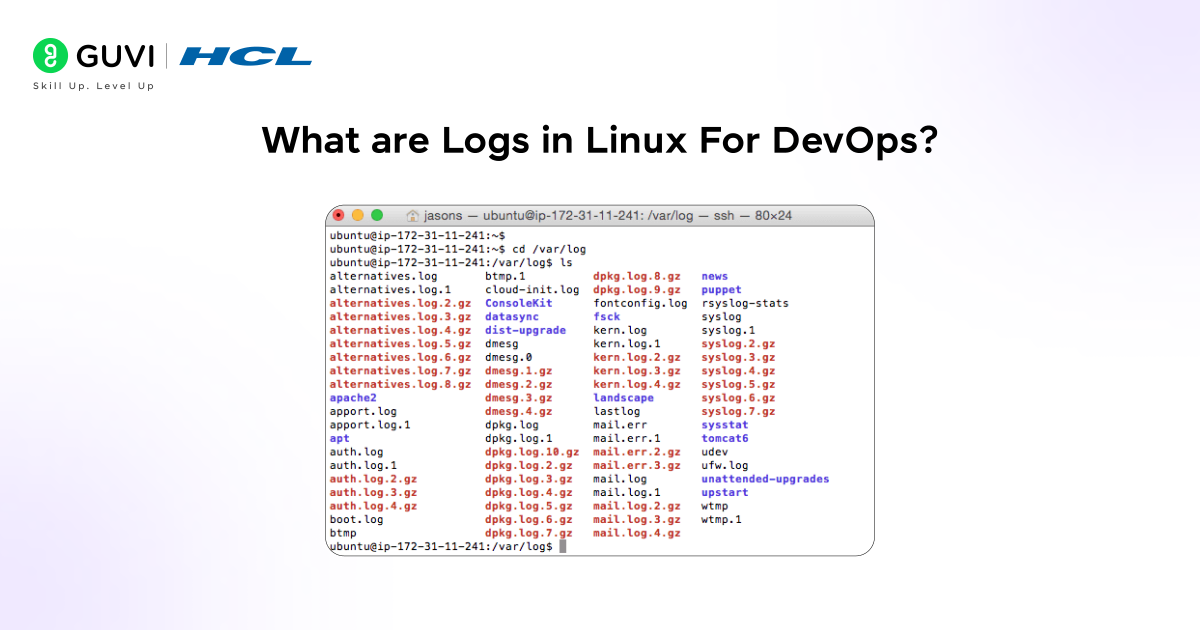
Logs in Linux for DevOps are text files that store records of system events, application activity, and service behavior. These files continuously capture information such as errors, warnings, access details, and status messages that help DevOps engineers understand how a system is behaving.
To understand this easily, think of logs like a security register at the entrance of a building. Every person entering or leaving is noted down with time and details. If something goes wrong inside the building, the register helps identify who entered, when it happened, and what might have caused the issue. In the same way, Linux logs record everything happening inside a server so DevOps teams can trace problems and fix them quickly.
For new DevOps learners, logs become the first place to check when something breaks. Since most Linux servers run without a graphical interface, these log files act as the system’s voice, clearly explaining what happened behind the scenes.
If you want to gain hands-on experience and strengthen your Linux for DevOps skills, do check out HCL GUVI’s DevOps Course. The course covers practical DevOps tools, Linux system management, CI/CD pipelines, and real-world log monitoring exercises to help beginners become industry-ready.
Why Logs Are Important In Linux For DevOps
Logs are a vital part of Linux for DevOps because they provide detailed information about system activity, application behavior, and errors. Whenever something goes wrong on a server, logs explain what happened, when it happened, and why it happened, making them the primary tool for troubleshooting and system monitoring in DevOps environments.
Key Importance
- Faster Troubleshooting – Logs help quickly identify the root cause of errors without guessing.
- System Monitoring – Logs show how services and processes behave over time on Linux servers.
- Improved Reliability – Regular log analysis helps detect issues early before they impact users.
- Better Learning For Beginners – Reading logs helps new DevOps learners understand real-world Linux system behavior.
Common Log Locations In Linux For DevOps
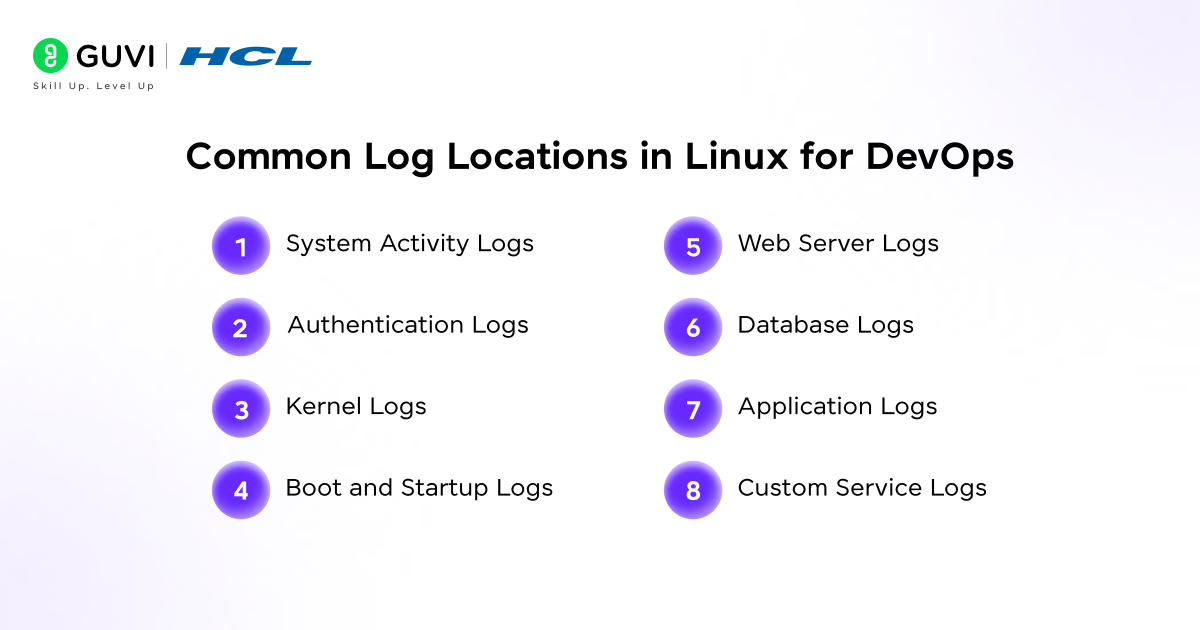
In Linux for DevOps, logs are spread across multiple locations depending on the service, application, or system component. Knowing the common log locations helps DevOps learners quickly find the right file when troubleshooting issues.
Key Log Locations
- System Activity Logs – These logs track general system events such as services starting or stopping, background process activities, and other important messages about system behavior.
Location: /var/log/syslog or /var/log/messages - Authentication Logs – These logs record all login attempts, sudo commands, and SSH connections. They are essential for monitoring who accessed the system and for detecting unauthorized login attempts.
Location: /var/log/auth.log - Kernel Logs – Kernel logs contain messages from the Linux kernel, including information about hardware, drivers, and low-level system operations. These logs are crucial when diagnosing hardware failures or system crashes.
Location: /var/log/kern.log - Boot and Startup Logs – These logs capture messages generated during system boot and hardware initialization. They help beginners understand what happens when a server starts and are useful for troubleshooting startup problems.
Location: /var/log/dmesg and /var/log/boot.log - Web Server Logs – These logs are generated by web servers like Apache or Nginx. They include access logs, which show who visited the website, and error logs, which record issues that occurred while serving pages.
Location: /var/log/apache2/ or /var/log/nginx/ - Database Logs – These logs track database activity, including queries, errors, and performance issues. Reading these logs helps beginners understand database behavior and troubleshoot issues like slow queries or failed connections.
Location: /var/log/mysql/ or /var/log/postgresql/ - Application Logs – Many applications create their own logs to record activity, errors, or events specific to the software. These logs are useful for debugging application-specific issues.
Location: /var/log/application-name/ - Custom Service Logs – Some services or scripts generate their own log files under /var/log. These are used for monitoring and debugging custom services, allowing DevOps learners to track unique processes.
Location: /var/log/service-name/

How To Read Logs Using Linux For DevOps
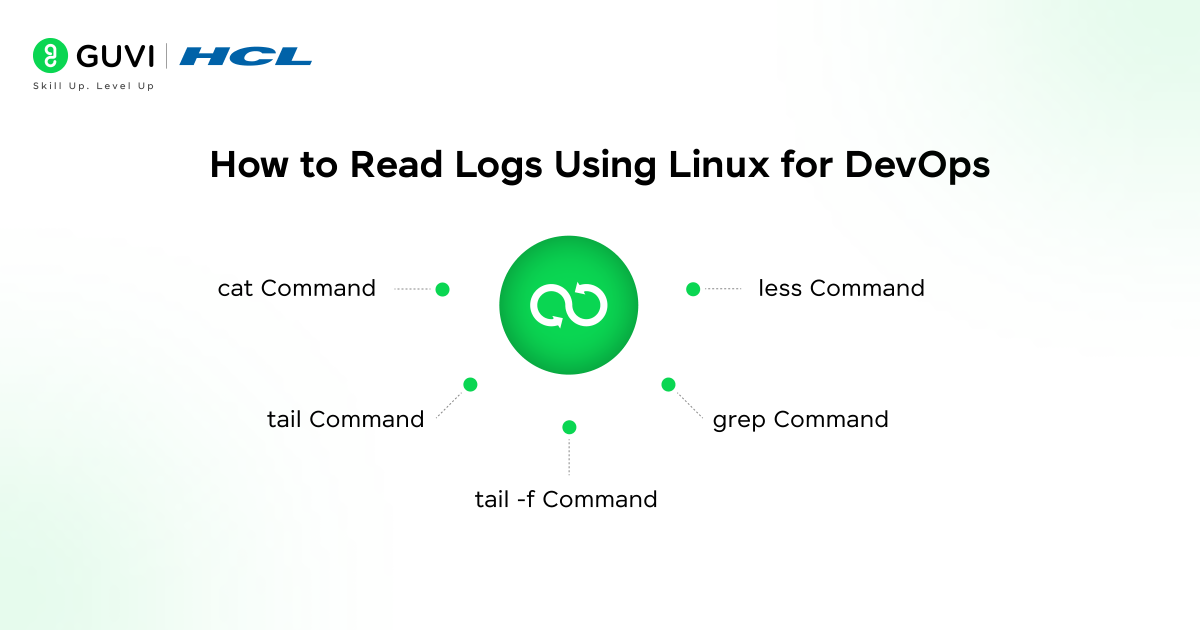
Reading logs is one of the most essential skills in Linux for DevOps. Logs contain valuable information about system events, application behavior, and errors. Knowing how to read and analyze these logs helps DevOps learners quickly identify issues and maintain smooth system operations.
Key Commands To Read Logs
- cat Command – Displays the entire content of a log file at once.
Example: cat /var/log/syslog
Best for small log files, but not recommended for very large files as it can be overwhelming. - less Command – Allows scrolling through large log files page by page.
Example: less /var/log/auth.log
It is beginner-friendly and helps read long logs without loading everything at once. - tail Command – Shows the most recent entries in a log file.
Example: tail /var/log/kern.log
Extremely useful for monitoring live system events or checking recent errors. - grep Command – Searches for specific keywords or patterns inside log files.
Example: grep “error” /var/log/apache2/error.log
Helps quickly locate important events without reading the entire log. - tail -f Command – Continuously monitors a log file in real-time.
Example: tail -f /var/log/syslog
Ideal for watching logs during deployments or when testing changes to live systems.
These commands form the foundation of Linux for DevOps log management. Beginners should practice using them on different log files to gain confidence in reading, filtering, and analyzing logs efficiently.
Working With Logs In Real Linux For DevOps Scenarios
In real Linux for DevOps environments, logs are not just static files—they are the primary tool for troubleshooting and monitoring systems. When a service fails, a web server stops responding, or an application behaves unexpectedly, logs provide the detailed information needed to identify the root cause quickly.
For example, if a website hosted on an Nginx server goes down, the access and error logs under /var/log/nginx/ help DevOps engineers determine whether the problem is due to configuration issues, high traffic, or server errors. Similarly, checking authentication logs can reveal failed login attempts or security issues.
Beginners can practice combining multiple Linux commands like tail, grep, and less to track live events, search for errors, and monitor system behavior during deployments. By actively reading logs, learners gain practical insight into how services, applications, and the Linux system interact in a real-world DevOps setup.For beginners looking to master Linux for DevOps and understand real-world system monitoring, do check out HCL GUVI’s DevOps eBook. It provides clear explanations, practical examples, and step-by-step guidance on log management, automation, and core DevOps practices.
💡 Did You Know?
- Linux logs can help predict system failures before they happen by analyzing recurring warning messages.
- You can combine commands like grep, awk, and tail to create real-time alert systems without installing extra tools.
- Many cloud-based DevOps setups centralize Linux logs from multiple servers, allowing engineers to debug issues from a single dashboard.
Conclusion
Linux for DevOps is a critical skill that every beginner should master, and reading logs is at the heart of it. Logs provide detailed insights into system behavior, application performance, and errors, helping engineers troubleshoot issues effectively without guesswork.
By learning where logs are stored and how to read them using commands like cat, less, tail, and grep, DevOps learners can monitor systems, detect problems early, and maintain stable, reliable infrastructure. Mastering log management builds a strong foundation for handling real-world DevOps environments confidently.
FAQs
1. Why should DevOps beginners focus on Linux logs?
Linux logs are the primary source of information for troubleshooting and monitoring. Beginners can quickly identify errors, understand system behavior, and gain practical experience in real-world environments.
2. Are logs only useful when errors occur?
No, logs also track normal system activity, performance trends, and security events, helping DevOps learners understand overall system health.
3. Which Linux command is best for beginners to read logs?
The less command is ideal for beginners because it allows scrolling through large log files safely without overwhelming the system.
4. Do all applications store logs in the same location?
No, while many logs are under /var/log, some applications create their own directories for logs based on configuration.
5. Is log analysis a daily task in DevOps roles?
Yes, monitoring and analyzing logs is a regular responsibility in Linux for DevOps roles, essential for debugging, monitoring, and ensuring system reliability.
Success Stories

About the Author
Jebasta
I translate the language of data into stories that anyone can understand. As a writer with a data science background, I simplify analytics, AI, and decision-making so beginners and enthusiasts can confidently explore the world of data.
View all posts by Jebasta
Connect with me @

















Did you enjoy this article?