


Artificial Intelligence and Machine Learning Articles
How to Use ChatGPT-5 Codex for Coding: A Simple Beginner’s Guide
Model Context Protocol vs APIs: Architecture & Use Cases


Get In Touch For Details! Request More Information
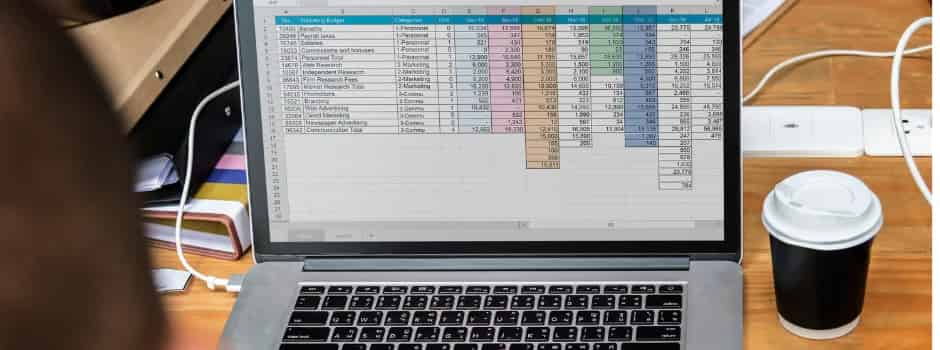
How to Set Up n8n Google Sheets Integration
Mar 26, 2026 2 Min Read 122 Views
(Last Updated)
Setting up Google Sheets with n8n may look technical, but in fact, this little tool is really easy to set up in order to help you with your day-to-day work. Connecting these two tools will let everything run automatically in the background, without manual additions or checks.
You’ll see how the integration functions in this guide to complete tasks more quickly and more effectively. When you know how to set it up, you’ll know just how much time you can save with it.
Quick Answer:
To set up n8n Google Sheets integration, create a Google Cloud Console project, enable the required APIs, and get your Client ID and Secret. Then connect your Google account in n8n, add the Google Sheets node, and select your sheet to start automating data.
Table of contents
- What is the n8n Platform?
- Example:
- Step-by-Step Guide to Connecting Google Sheets with n8n
- Part 1: Set Up Google Cloud Console Connection
- PART 2: n8n Setup
- Conclusion
- FAQs
- Why is the Google Cloud setup required?
- What tasks can be automated with this integration?
- What if the integration stops working?
What is the n8n Platform?
The n8n platform lets you easily automate workflows by visually connecting different apps through easy-to-use interfaces to trigger actions. It moves data between your favorite web applications automatically behind the scenes using APIs, so instead of doing things manually, you can create workflows that run on their own.
Example:
With Google Sheets, n8n automatically adds or updates data in your sheet when an event occurs, such as a form submission or new data from another app. This implies you do not need to reopen the worksheet or enter data manually.
Also Read: How to Build AI Agents with n8n? 10 Steps is All it Takes
Explore our free 5-day AI/ML resource and see how it’s used across different areas: AI/ML Email Course
n8n supports 1500+ app integrations, letting you connect tools like Google Sheets, Gmail, and more to automate tasks easily.
Step-by-Step Guide to Connecting Google Sheets with n8n
Part 1: Set Up Google Cloud Console Connection
1. Open Google Cloud Console and create a project
Login → Select project drop-down → New Project → Create
2. Enable APIs (Sheets + Drive)
Click “API & Services”, then Enable APIs.
- Enable Google Sheets API
- Enable Google Drive API
3. Configure OAuth Consent Screen
- Go to the OAuth consent screen
- Choose External
- Add app name, email
- Add scopes (Sheets + Drive)
- Add your Gmail as a test user
- Save and continue
4. Create OAuth Client ID
- Go to Credentials → Create Credentials → OAuth Client ID
- Choose Web Application
- (Leave redirect for now, add later)
- Click Create
5. Copy Client ID & Secret + Publish App
- Copy Client ID & Secret
- Go back → Click “Publish App.”
PART 2: n8n Setup
6. Open n8n and Create Workflow
Login → Click “Create Workflow.”
7. Add Trigger Node
Click “+” → Choose Manual / Webhook / Schedule
8. Add Google Sheets Node
Click “+” → Search Google Sheets → Select
9. Create a Google Credential in n8n
- Click “Create Credential”
- Paste Client ID & Secret
10. Add Redirect URI (Important)
- Copy the redirect URL from n8n
- Go to Google Cloud → OAuth Client
- Paste it → Save
11. Connect Google Account
- Sign in → Allow permissions
12. Configure Google Sheets Node
- Choose operation (Append Row / Get Rows / Update)
- Select Spreadsheet and Sheet
- Make sure columns already exist
13. Map Data
Match fields (Name → Name, Email → Email)
14. Execute and Test
Click “Execute” → Check data in Google Sheets
15. Fix Errors (if any)
Check mapping or reconnect the account if needed
16. Activate Workflow and Test Real Case
Turn ON workflow → Trigger real event → Confirm data
Also Read: Build a Blog Research and Writer n8n Workflow: Complete Guide
Step into AI/ML with HCL GUVI’s Intel & IITM Pravartak Certified AI/ML Course — build real skills through live classes, 20+ projects, and in-demand tools like Python, ML, and Generative AI in just 4–6 months. Learn in your language, get 1:1 support, and unlock opportunities with 1000+ hiring partners. Join us today and level up your future!

Conclusion
The n8n integration with Google Sheets is an easy and useful way to automate your duties and manage data daily without any manual effort. When the integration is complete, you don’t have to update or check your sheets repeatedly, as everything works in the background automatically. It will not only save time but also eliminate errors and keep one’s data organised, making one’s overall workflow smoother.
FAQs
Why is the Google Cloud setup required?
It connects your Google account securely and gives n8n access to your Google Sheets.
What tasks can be automated with this integration?
You can add, update, or read data in Google Sheets automatically from different events.
What if the integration stops working?
It usually happens due to permission or setup issues and can be fixed by reconnecting or checking settings.
Success Stories












Did you enjoy this article?