


Artificial Intelligence and Machine Learning Articles
AI/ML Skills Gap 2026: Why Companies Can't Find Job-Ready Talent
20 AI/ML Interview Questions Recruiters Can Use Without a Tech Background - Best Guide
How Industry-Backed AI/ML Bootcamps Are Changing the AI/ML Hiring Pipeline - Best Guide 2026
From IT Support to AI Engineer: A Realistic Career Switch Guide 2026


Get In Touch For Details! Request More Information

Getting Started with Claude in Excel
Jun 20, 2026 6 Min Read 1804 Views
(Last Updated)
Claude in Excel is an add-in that integrates Claude directly into your Microsoft Excel workflow. It reads your entire workbook every cell, every formula, every tab — and lets you work with it through plain language conversation in a sidebar.
For professionals who spend significant time in spreadsheets, Claude Excel getting started means you no longer switch between your model and a separate AI chat window. Ask Claude about a cell reference, update an assumption without breaking a dependency, or trace a #REF! error to its source all without leaving Excel.
This tutorial covers everything you need to get set up, what Claude in Excel actually does, how to install it, and the core features you will use most once it is running.
Quick TL;DR Summary
- What it is: An Excel add-in that puts a Claude sidebar directly inside your workbook reading cells, formulas, and tab structure to assist with questions, edits, and analysis.
- Who it is for: Finance analysts, accountants, consultants, HR professionals, and anyone who works extensively with complex multi-tab spreadsheets.
- How to install: Search for ‘Claude by Anthropic for Excel’ in Microsoft AppSource, click Get It Now, sign in with your Claude account, and open the sidebar from the Excel ribbon.
- Core features: Cell-level citations, safe assumption updates, formula debugging, model building, data analysis, pivot table and chart editing, connectors to external tools, and reusable Skills.
- Availability: Beta, available on Pro, Max, Team, and Enterprise plans. Supported on Excel for web, Windows (Microsoft 365), Mac (version 16.46+), and iPad.
- Key shortcut: Ctrl+Option+C on Mac or Ctrl+Alt+C on Windows opens the Claude sidebar instantly from anywhere in Excel.
Table of contents
- What is Claude in Excel?
- How to Install Claude in Excel
- For Individual Users
- For IT Administrators
- Supported Versions
- Core Features of Claude in Excel
- Read and Understand Complex Models
- Update Assumptions Safely
- Debug and Fix Errors
- Build and Fill Templates
- Native Excel Editing and Formatting
- Example Prompts by Task Type
- Financial Modelling
- Data Analysis
- Data Cleaning
- Formula Help
- Formatting and Presentation
- Skills and Connectors in Excel
- Skills
- Persistent Instructions
- Connectors
- What to Know Before You Start
- Conclusion
- FAQs
- What is Claude in Excel and what does it do?
- How do I install Claude in Excel?
- Which plans support Claude in Excel?
- Does Claude in Excel change my formulas without asking?
- Can Claude in Excel work with external data sources?
What is Claude in Excel?
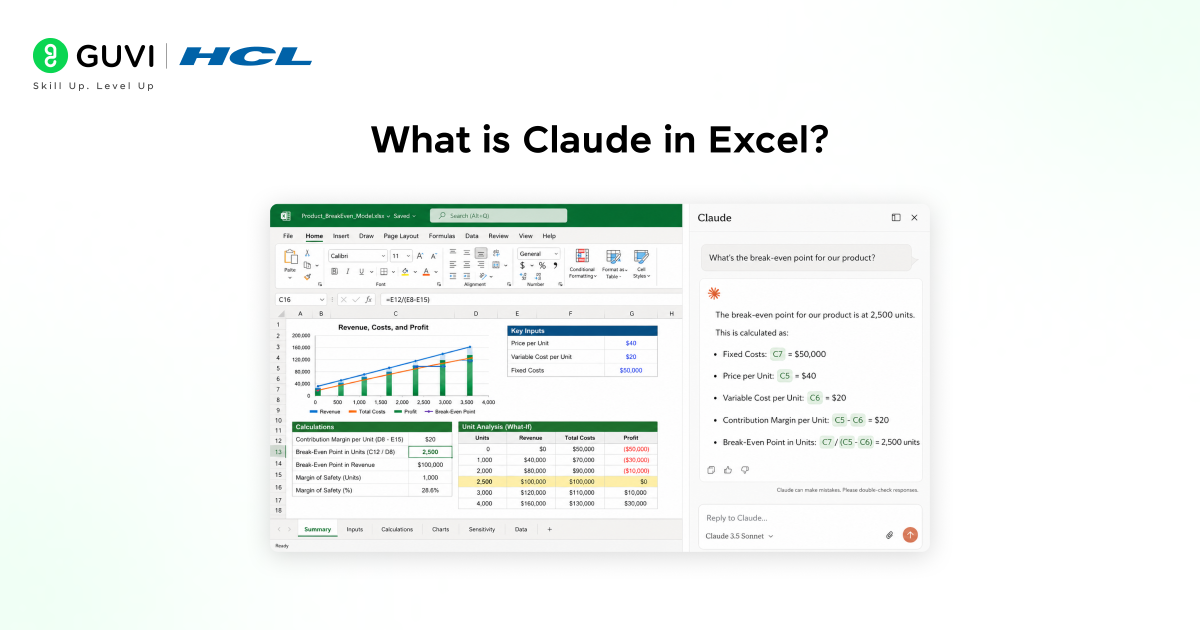
Claude in Excel is not a standalone AI tool you switch to for help. It lives inside your spreadsheet as a sidebar. When you open it, Claude reads your entire workbook, every tab, every formula, every dependency and is ready to answer questions, make changes, or explain how the model works.
The key difference from using Claude.ai in a separate tab is context. Claude in Excel always has access to your actual file. You do not paste data in or describe your model. Claude is already looking at it.
Every answer Claude gives includes cell-level citations and clickable references that navigate directly to the cells it is talking about. Every change Claude makes is highlighted so you can review it before saving. Nothing gets overwritten silently.
Claude in Excel is built specifically for financial analysis and modelling. It understands nested formulas, multi-tab workbooks, and complex dependency chains found in DCF models, three-statement models, and scenario analysis — the same structures that make large spreadsheets difficult to navigate and even harder to hand off.
How to Install Claude in Excel

There are two ways to install Claude in Excel, depending on whether you are an individual user or an IT administrator deploying it across an organization.
For Individual Users
1. Go to the Claude for Excel listing on Microsoft AppSource and click Get It Now.
2. Open Excel and activate the add-in. On Mac, go to Tools > Add-ins. On Windows, go to Home > Add-ins.
3. Sign in with your Claude account credentials the same account you use at claude.ai.
4. The Claude sidebar will open. You are ready to use it.
Tip: If the sidebar closes at any point, reopen it from Home > My Add-ins > Claude. Or use the keyboard shortcut: Ctrl+Option+C on Mac or Ctrl+Alt+C on Windows.
For IT Administrators
To deploy Claude in Excel across your organization, use the Microsoft 365 Admin Center:
5. Navigate to Settings > Integrated Apps > Add-ins.
6. Search for ‘Claude by Anthropic for Excel’ in Microsoft AppSource.
7. Deploy the add-in to your organization or to specific users or security groups.
8. Once deployed, users will see Claude appear in the Home ribbon. First-time users sign in with their Claude account. No additional installation is required on their end.
For organizations routing API traffic through Amazon Bedrock, Google Cloud Vertex AI, or Microsoft Azure, Claude in Excel can also be configured to work through an internal LLM gateway without requiring individual Claude accounts.
Supported Versions
• Excel on the web
• Excel on Windows Microsoft 365 subscription, build 16.0.13127.20296 or higher
• Excel on Mac version 16.46 or higher, build 21011600 or higher
• Excel on iPad version 2.51 or higher
Not supported: Excel 2016 or 2019 perpetual licences, Excel on Android, or older Microsoft 365 builds below the SharedRuntime threshold.
Core Features of Claude in Excel

Read and Understand Complex Models
Ask Claude about any cell, formula, or section of your workbook. Claude reads across multiple tabs and returns answers with direct citations to the referenced cells.
What assumptions drive the revenue forecast in Q3?
Explain how the WACC calculation flows through the DCF model
Update Assumptions Safely
Modify values and inputs while Claude maintains all formula dependencies. Every change is highlighted with a clear explanation of what was changed and why. Nothing is overwritten without your review.
Increase growth rate by 2% and show the impact on terminal value
Update interest rate assumptions based on latest Fed guidance
Debug and Fix Errors
Trace #REF!, #VALUE!, and circular reference errors to their source in seconds. Claude explains what went wrong and proposes a fix that does not disrupt the rest of the model.
Why is this NPV calculation returning #VALUE?
Find all circular references in this workbook
Build and Fill Templates
Create new models from scratch or populate existing templates. Claude understands standard financial model structures and can generate formulas that reference data across sheets.
Build a three-statement financial model for a SaaS company
Fill this DCF template with data from the uploaded 10-K
Native Excel Editing and Formatting
Claude in Excel now supports a full range of native Excel operations directly — not just formula writing, but actual spreadsheet editing:
- Pivot table editing sort, filter, and modify the schema of existing pivot tables
- Chart editing adjust axes, labels, and legends on existing charts
- Conditional formatting apply rules based on values or formulas, including data bars
- Sort and filter sort and filter tabular data using Excel-native controls
- Data validation set up dropdown lists and input restrictions on cells
- Finance formatting toggle gridlines and set print areas to prepare outputs for sharing
Claude in Excel supports MCP connectors, allowing it to pull context directly from tools like S&P Global, LSEG, Daloopa, PitchBook, Moody’s, and FactSet. If connectors are already enabled in your Claude settings, they work seamlessly in Excel without any additional setup.
Example Prompts by Task Type
Here are the categories of work Claude in Excel handles, with specific prompts from Anthropic’s documentation that you can use directly or adapt:
Financial Modelling
• “Build a 12-month revenue forecast using historical trends”
• “Add a downside case assuming revenue drops 15%”
• “Create base, bull, and bear scenarios with different growth assumptions”
• “Build a sensitivity table showing IRR across exit multiples and hold periods”
Data Analysis
• “What trends stand out in 2025 vs 2024?”
• “Identify the top 10 customers by revenue and their growth rates”
• “Compare actuals to budget and explain the largest variances”
• “Reconcile these two sheets and highlight discrepancies”
Data Cleaning
• “Convert all dates to YYYY-MM-DD format”

• “Find and remove duplicate rows, keeping the most recent”
• “Split full address into street, city, state, zip columns”
• “Clean up company names remove Inc, LLC, Ltd variations”
Formula Help
• “Find all #REF and #VALUE errors in this workbook”
• “Explain what this formula does in plain English”
• “Write a formula to calculate days of inventory from this data”
• “Build a formula that flags overdue invoices”
Formatting and Presentation
• “Sort this table by revenue, descending”
• “Add a conditional format that highlights cells below the target threshold in red”
• “Set up a dropdown for the status column with options: Active, Pending, Closed”
• “Toggle off gridlines and set the print area to A1:F20”
Skills and Connectors in Excel
Two features extend what Claude in Excel can do beyond the workbook itself.
Skills
Skills are saved workflows you can run with a single command. When you or your team figures out the right way to run a variance analysis, validate a model, or clean a dataset, you save that workflow as a Skill. Anyone on the team can then run it directly from the Claude sidebar by typing / to see available Skills and selecting one.
Skills you have enabled in your Claude settings are automatically available in Excel. Claude applies relevant Skills without you needing to invoke them but you can always trigger one manually if you want to run a specific workflow.
Persistent Instructions
Use the Instructions field in the Claude sidebar to set preferences that apply to every conversation in Excel. This is useful for formatting conventions (for example, “always use IB formatting: blue for inputs, black for formulas”), recurring context about your workflow, or output style preferences.
Instructions set in Excel apply only to Excel they are separate from any instructions you have set in Claude for PowerPoint or other tools.
Connectors
Connect external data sources to give Claude context beyond your spreadsheet. Supported connectors include financial data providers like S&P Global, LSEG, Daloopa, PitchBook, Moody’s, and FactSet. If you have already configured connectors in your Claude settings, they work in Excel automatically.
What to Know Before You Start
A few things worth knowing before you bring Claude into your first workbook:
- Always review changes before saving. Claude highlights every cell it updates. Review these before finalising any work, especially for client-facing deliverables or audit-critical calculations.
- Chat history is not saved between sessions. Each time you open the add-in, you start a fresh conversation. For longer projects, use the Session Logging option in settings Claude will create a separate ‘Claude Log’ tab to track its actions each turn.
- Only use it with trusted files. Claude in Excel reads everything in your workbook, including cells, formulas, and comments. Do not use it with spreadsheets from external or untrusted sources, as they may contain hidden instructions that could cause Claude to take unintended actions.
- Supported formats are .xlsx and .xlsm only. Other formats like .xls or .csv need to be converted before Claude can work with them.
- Not recommended for: final client deliverables without human review, audit-critical calculations without verification, or models containing highly sensitive regulated data without proper controls.
If you want to learn more about building skills for Claude Code and automating your procedural knowledge, do not miss the chance to enroll in HCL GUVI’s Intel & IITM Pravartak Certified Artificial Intelligence & Machine Learning courses. Endorsed with Intel certification, this course adds a globally recognized credential to your resume, a powerful edge that sets you apart in the competitive AI job market
Conclusion
In conclusion, getting started with Claude Excel means adding a sidebar to your existing spreadsheet workflow not replacing it. Claude reads your entire workbook, explains formulas with cell-level citations, makes changes safely with your review, and connects to the external data sources your workflow depends on.
The install takes a few minutes. The keyboard shortcut — Ctrl+Option+C on Mac or Ctrl+Alt+C on Windows gets you into the sidebar from anywhere. Start with a workbook you did not build or one you have not opened in a while, ask Claude to walk you through it, and see how much faster that orientation becomes.
For client-facing work and audit-critical models, Claude is a collaborator you review, not a replacement for your judgement. Used that way, it saves significant time on the parts of spreadsheet work that are genuinely slow — navigating unfamiliar models, tracing errors, and updating assumptions across complex dependencies.
FAQs
1. What is Claude in Excel and what does it do?
Claude in Excel is an add-in that integrates Anthropic’s Claude directly into Microsoft Excel as a sidebar. It reads your entire workbook — cells, formulas, tab structure, and dependencies — and lets you ask questions, make changes, debug errors, and build models through plain language conversation. Every change it makes is highlighted for your review, and every answer includes cell-level citations.
2. How do I install Claude in Excel?
Search for ‘Claude by Anthropic for Excel’ in Microsoft AppSource, click Get It Now, and follow the installation prompts. Open Excel, activate the add-in from Tools > Add-ins on Mac or Home > Add-ins on Windows, and sign in with your Claude account. The keyboard shortcut Ctrl+Option+C (Mac) or Ctrl+Alt+C (Windows) opens the Claude sidebar instantly.
3. Which plans support Claude in Excel?
Claude in Excel is currently in beta and available on Pro, Max, Team, and Enterprise plans. It is not available on the free plan. It works on Excel for web, Excel for Windows with a Microsoft 365 subscription, Excel on Mac version 16.46 or higher, and Excel on iPad version 2.51 or higher.
4. Does Claude in Excel change my formulas without asking?
No. Claude highlights every change it makes and waits for your confirmation before applying edits. It also warns you before overwriting existing data. You maintain full control over what gets changed and when. Anthropic explicitly recommends reviewing all changes before saving or sharing any file.
5. Can Claude in Excel work with external data sources?
Yes. Claude in Excel supports MCP connectors that link to external tools including S&P Global, LSEG, Daloopa, PitchBook, Moody’s, and FactSet. Connectors you have already configured in your Claude settings work in Excel automatically. You can also use Skills — saved workflows — that pull from connected tools in one step.
Success Stories

About the Author
Vishalini Devarajan
An Aerospace Engineer turned content writer, I focus on making complex concepts easy to understand through well-structured, reader-friendly blogs. Whether it’s a technical topic or a non-technical one, I love creating content that is clear, engaging, and impactful.
View all posts by Vishalini Devarajan
Connect with me @













Did you enjoy this article?