


Artificial Intelligence and Machine Learning Articles
Build an AI Travel Assistant With Google Agent Development Kit (ADK)
Build an LLM Evaluation Framework: A Complete Guide
Building a Language Model Application with LangChain: A Beginners Guide 2026


Get In Touch For Details! Request More Information
Build a Custom LLM-Powered Chat App Using Chainlit
Mar 06, 2026 6 Min Read 27 Views
(Last Updated)
So you’ve been exploring the world of large language models, and now you want to build something real, not just run a script in the terminal, but an actual chat application that looks and feels like a proper product. That’s exactly where Chainlit comes in.
This article walks you through building a custom LLM-powered chat app from scratch using Chainlit and OpenAI. You don’t need any frontend experience. You don’t need to know React or JavaScript. All you need is Python, a bit of patience, and this article.
So, without further ado, let us get started!
Quick Answer:
Chainlit is an open-source Python framework that lets you build production-ready LLM chat applications without any frontend development experience. Combined with tools like LangChain and Ollama, you can go from zero to a fully functional AI chat app in under an hour. This guide walks you through everything, from setup to deployment.
Table of contents
- What Is Chainlit?
- How Chainlit Works: The Big Picture
- Setting Up Your Project
- Step 1: Create Your Project Folder
- Step 2: Set Up a Virtual Environment
- Step 3: Install the Required Packages
- Step 4: Setting Up Your API Key
- Building the App: Step by Step
- The Simplest Possible Chainlit App
- Adding a Real LLM
- Adding Conversation Memory
- Common Errors and What They Actually Mean
- What You've Actually Built
- Where to Go From Here
- Conclusion
- FAQs
- What is Chainlit used for?
- Is Chainlit better than Streamlit for building chat apps?
- Do I need frontend experience to build a chat app with Chainlit?
- How do I keep my OpenAI API key secure in a Chainlit app?
- Why does my Chainlit chatbot forget previous messages?
What Is Chainlit?
Before writing any code, it’s worth understanding what Chainlit actually does, because knowing this will help you debug faster and design better.
Chainlit is an open-source Python framework built specifically for creating conversational AI applications. It gives you a fully functional, ChatGPT-style chat interface the moment you run a single command. No HTML, no CSS, no JavaScript.
But here’s what makes it genuinely powerful. Chainlit isn’t just a pretty UI wrapper. It manages:
- Real-time message streaming (responses appear word by word)
- User session management (each user’s conversation is isolated)
- Multi-turn chat history (your bot remembers what was said earlier)
- Native integrations with LangChain, OpenAI, LlamaIndex, and more
If you’ve tried building chat interfaces with Streamlit or Gradio before, you’ll notice immediately that Chainlit feels purpose-built for conversational AI in a way those tools don’t.
How Chainlit Works: The Big Picture
Here’s a mental model that will save you a lot of confusion later.
Chainlit runs a local web server when you execute the chainlit run command. That server powers a chat UI in your browser. Every time a user sends a message, Chainlit captures that message and passes it to a Python function you’ve defined.
Your function processes it, calls whatever AI model you want, and sends a response back. Chainlit then renders that response in the chat window.
The communication between your browser and your Python code happens in real time using WebSockets, but Chainlit handles all of that internally. You never have to think about it.
Your entire job as the developer is to write the Python logic inside those functions. That’s it.
Setting Up Your Project
Let’s get your environment ready. This part is straightforward, but rushing through it is one of the most common reasons beginners run into errors later.
Step 1: Create Your Project Folder
Open your terminal and run the following:
mkdir chainlit-chat-appcd chainlit-chat-app
This creates a dedicated folder for your project and moves you inside it. Always work inside a dedicated project folder; mixing project files with other things on your system causes path confusion.
Step 2: Set Up a Virtual Environment
python -m venv venv
source venv/bin/activate # macOS / Linux
venv\Scripts\activate # Windows
Once activated, you’ll see (venv) at the start of your terminal prompt.
A virtual environment creates an isolated space for your project’s dependencies. This means the packages you install here won’t interfere with other Python projects on your machine, and vice versa.
Common mistake here: A lot of people skip this step. Don’t. If you install packages globally and later work on another project with different version requirements, you’ll run into conflicts that are frustrating to debug.
Once activated, your terminal prompt should show (venv) at the beginning. If you don’t see that, your environment isn’t active.
Step 3: Install the Required Packages
pip install chainlit langchain langchain-openai openai python-dotenv
Here’s what each package does:
– `chainlit`: The framework that gives you the chat UI and event system
– `langchain`: The orchestration library that helps you structure prompts, chains, and memory
– `langchain-openai`: LangChain’s integration layer specifically for OpenAI models
– `openai`: The official OpenAI Python SDK
– `python-dotenv`: Loads your API keys from a `.env` file so you never hardcode secrets
Your Project Structure:
By the time you’re done, your project will have exactly three files:
chainlit-chat-app/
│
├── app.py ← Your main application logic
├── .env ← Your API key (never share this)
└── chainlit.md ← Your app’s welcome screen (auto-generated)
Example:
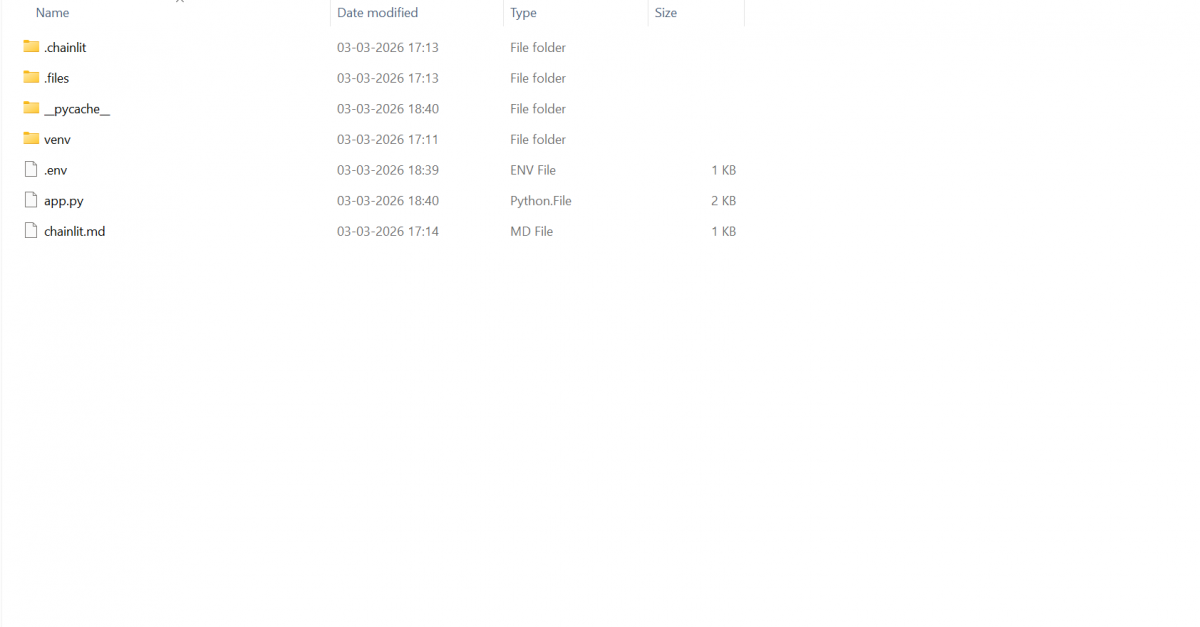
Clean and minimal. Let’s build it.

Step 4: Setting Up Your API Key
Create a file called `.env` in your project root:
OPENAI_API_KEY=your_actual_api_key_here
Replace `your_actual_api_key_here` with the key you get from [platform.openai.com}
Common mistake here: People often write it as `OPENAI_API_KEY = your_key` with spaces around the equals sign. That will break it. There should be no spaces.
Your API key is sensitive. Exposing it publicly can result in unauthorised usage and unexpected billing on your OpenAI account.
Building the App: Step by Step
The Simplest Possible Chainlit App
Create app.py and start with this:
import chainlit as cl

@cl.on_message

async def main(message: cl.Message):

    user_input = message.content

    response = f"You said: {user_input}"

    await cl.Message(content=response).send()
Now run it:
chainlit run app.py -w
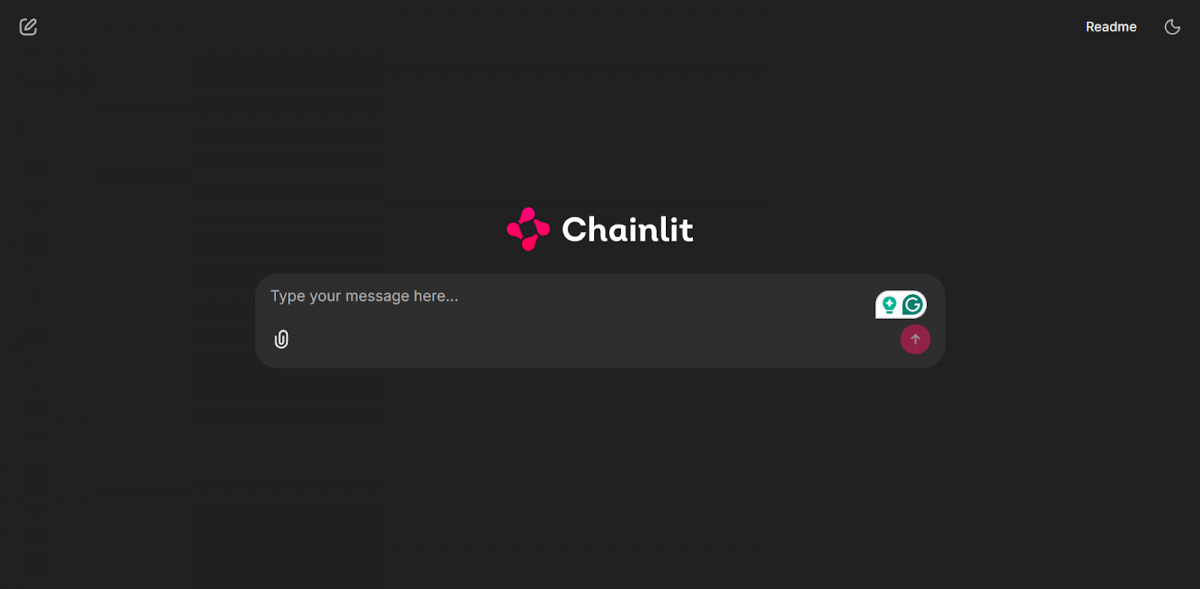
Open your browser at http://localhost:8000. You’ll see a fully functional chat interface. Type anything, and it will echo it back to you.
Let’s break down what’s happening here, line by line:
- import chainlit as cl – You’re importing the Chainlit library and aliasing it as cl for convenience.
- @cl.on_message – This is a decorator. It tells Chainlit: “Every time a user sends a message, run the function directly below this line.” Think of it as an event listener.
- async def main(message: cl.Message) – This is an asynchronous function. The message parameter is a Chainlit object that contains everything about the user’s message – most importantly, message.content, which is the actual text they typed.
- await cl.Message(content=response).send(), This creates a new message object with your response and sends it to the chat window. The await keyword is needed because sending a message is an asynchronous operation.
Common mistake here: Writing def main instead of async def main. Chainlit’s event handlers must be asynchronous. If you forget the async keyword, Chainlit will throw an error that might look confusing at first glance.
Adding a Real LLM
Now let’s make it actually intelligent. Here’s the updated app.py:
import os

import chainlit as cl

from langchain_openai import ChatOpenAI

from langchain.prompts import ChatPromptTemplate

from langchain.chains import LLMChain

from dotenv import load_dotenv

# Load environment variables from .env file

load_dotenv()

# Define the prompt structure

prompt = ChatPromptTemplate.from_messages([

    ("system", "You are a helpful AI assistant. Answer clearly and concisely."),

    ("human", "{question}")

])

@cl.on_chat_start

async def start():

    # Initialize the LLM

    llm = ChatOpenAI(

        model="gpt-3.5-turbo",

        temperature=0.7,

        openai_api_key=os.getenv("OPENAI_API_KEY")

    )

    # Create the chain

    chain = LLMChain(llm=llm, prompt=prompt)

    # Store the chain in the user session

    cl.user_session.set("chain", chain)

@cl.on_message

async def main(message: cl.Message):

    # Retrieve the chain from the session

    chain = cl.user_session.get("chain")

    # Run the chain with the user's message

    response = await chain.arun(question=message.content)

    # Send the response back to the user

    await cl.Message(content=response).send()
This is the core of your app.
Common mistake here: Calling os.getenv(“OPENAI_API_KEY”) before calling load_dotenv(). If you do that, the environment variable hasn’t been loaded yet, and os.getenv will return None. Your LLM initialization will fail silently or throw a confusing authentication error.
Output:
Adding Conversation Memory
Right now, your chatbot is stateless, it forgets everything the moment you send a new message. Ask it “What’s 2 + 2?” and it answers. Then ask “What did I just ask you?” and it has no idea. That’s not a great experience.
Let’s fix that with LangChain’s ConversationBufferMemory:
import os

import chainlit as cl

from langchain_openai import ChatOpenAI

from langchain.chains import ConversationChain

from langchain.memory import ConversationBufferMemory

from dotenv import load_dotenv

load_dotenv()

@cl.on_chat_start

async def start():

    llm = ChatOpenAI(

        model="gpt-3.5-turbo",

        temperature=0.7,

        openai_api_key=os.getenv("OPENAI_API_KEY")

    )

    memory = ConversationBufferMemory()

    chain = ConversationChain(llm=llm, memory=memory)

    cl.user_session.set("chain", chain)

@cl.on_message

async def main(message: cl.Message):

    chain = cl.user_session.get("chain")

    response = await chain.arun(message.content)

    await cl.Message(content=response).send()
Here’s what changed and why:
- ConversationBufferMemory – This object stores the full conversation history in memory. Every exchange (user message + AI response) gets appended to a running log that gets sent back to the model with each new message. That’s how the model maintains context.
- ConversationChain – Unlike LLMChain, this chain is specifically designed for multi-turn conversations. It automatically manages how the memory gets injected into each prompt behind the scenes.
Common mistake here: Using ConversationChain but initializing a new memory object inside @cl.on_message rather than in @cl.on_chat_start. If your memory object gets recreated on every message, the history is wiped each time, which completely defeats the purpose.
Chainlit supports a feature called Step Visualisation, which lets you see exactly what’s happening inside your LangChain pipeline in real time, each prompt sent to the model, each tool call made, and each intermediate output. You can enable it by passing cl.AsyncLangchainCallbackHandler() as a callback to your chain. This is incredibly useful during development when you want to understand why your chatbot is giving unexpected responses.
Common Errors and What They Actually Mean
Here’s a quick reference for errors you’re likely to encounter:
- AuthenticationError: No API key provided Your API key isn’t being loaded correctly. Double-check that your .env file exists in the same directory as app.py, that there are no spaces around the = sign, and that load_dotenv() is called before os.getenv().
- AttributeError: ‘coroutine’ object has no attribute… You forgot to await an async function call. Anywhere you call an async function, you must put await in front of it.
- ModuleNotFoundError: No module named ‘chainlit’ Your virtual environment isn’t activated, or you installed packages in a different environment. Run source venv/bin/activate again and reinstall.
- TypeError: main() missing argument Your @cl.on_message function signature is wrong. Make sure it accepts exactly one argument: message: cl.Message.
What You’ve Actually Built
Let’s take a step back. With roughly 30 lines of Python, here’s what your application does:
- Renders a full, production-quality chat interface in the browser
- Connects securely to OpenAI’s API using environment variables
- Maintains a live conversation with multi-turn memory
- Handles asynchronous communication between the user and the model
- Manages isolated sessions for each user
That’s a genuinely non-trivial application. A few years ago, building something equivalent would have taken a frontend developer, a backend developer, and several days of work.
Where to Go From Here
Once you’re comfortable with this foundation, here are the logical next steps:
- Add a system prompt toggle – Let users switch between different assistant personas (formal, casual, technical) using Chainlit’s action buttons
- Build a document Q&A bot – Combine Chainlit with LangChain’s document loaders to let users ask questions about uploaded PDFs
- Deploy to the cloud – Host your Chainlit app on platforms like Render, Railway, or a Linux VM on AWS or GCP so others can access it
- Add streaming – Set streaming=True in your ChatOpenAI initialization and use cl.AsyncLangchainCallbackHandler() to make responses appear token by token
If you’re serious about mastering LLMs and want to apply it in real-world scenarios, don’t miss the chance to enroll in HCL GUVI’s Intel & IITM Pravartak Certified Artificial Intelligence & Machine Learning course. Endorsed with Intel certification, this course adds a globally recognized credential to your resume, a powerful edge that sets you apart in the competitive AI job market.
Conclusion
In conclusion, building an LLM-powered chat application used to require deep expertise across multiple domains. Chainlit changes that equation significantly. By handling the interface, session management, and real-time communication layers, it lets you focus on what actually matters: the intelligence and behavior of your AI.
Start with the basic echo app. Get it running. Then add the LLM. Then add memory. Take it one step at a time, and make sure you understand each piece before moving to the next. That’s the approach that will actually make you confident with this stack, not just someone who copied and pasted their way to a working app.
FAQs
1. What is Chainlit used for?
Chainlit is an open-source Python framework used to build conversational AI chat applications with a ready-made ChatGPT-style interface. It handles the frontend, real-time streaming, and session management automatically, so you can focus entirely on your AI logic without writing any HTML, CSS, or JavaScript.
2. Is Chainlit better than Streamlit for building chat apps?
For general data apps and dashboards, Streamlit is a solid choice, but for conversational AI specifically, Chainlit wins. It is purpose-built for multi-turn chat, supports real-time token streaming natively, and manages user sessions out of the box in a way Streamlit simply wasn’t designed to do.
3. Do I need frontend experience to build a chat app with Chainlit?
No, that’s one of Chainlit’s biggest advantages. The entire UI is generated automatically when you run chainlit run app.py. All you need to write is Python, making it accessible for data scientists, ML engineers, and backend developers without any frontend background.
4. How do I keep my OpenAI API key secure in a Chainlit app?
Store your API key in a .env file and load it using the python-dotenv library with load_dotenv(). Never hardcode the key directly in your app.py, and always add .env to your .gitignore file to prevent it from being accidentally pushed to GitHub.
5. Why does my Chainlit chatbot forget previous messages?
Your chatbot is likely missing conversation memory. By default, each message is processed independently with no history passed to the model. Adding ConversationBufferMemory from LangChain and using ConversationChain instead of LLMChain gives your chatbot the ability to remember and reference earlier parts of the conversation.
Success Stories

About the Author
Lukesh S
A professional content writer who has experience in freelancing and now working as a Technical Content Writer at GUVI. Google Certified Digital Marketer. Have a sound knowledge of SQL, Data Structures and Cloud Computing.
View all posts by Lukesh S
Connect with me @













Did you enjoy this article?