


Software Automation & Testing Articles
How to Use Claude for A/B Testing Content Variations
Load Testing Your Application with k6: A Practical Introduction
Cypress Component Testing Tutorial: Test Your UI in a Real Browser, Not a Fake One
Manual Tester Roles and Responsibilities: 12 Important Duties for Career Growth


Get In Touch For Details! Request More Information

Automate Web Testing with Playwright and Java – Full Guide
Jul 14, 2026 2 Min Read 4539 Views
(Last Updated)
Automated UI testing has become a defining factor in software quality, shaping the delivery of robust web applications. For years, Selenium dominated browser automation, but the landscape is shifting as Playwright emerges as a preferred choice due to its rich cross-browser support, speedy execution, and powerful built-in waiting mechanism that tackles flakiness head-on.
The Playwright framework, created by Microsoft, stands out for its reliable end-to-end testing across Chromium, Firefox, and WebKit browsers. Java teams looking to enhance their automation practices can integrate Playwright with their familiar tools, tapping into the strengths of both platforms.
This guide takes you through the process of setting up Playwright with Java and provides an in-depth look at creating a working login automation script for a real-world application, giving you practical steps you can immediately apply.
Table of contents
- What is Playwright?
- Key Features:
- Why Java with Playwright?
- Setting Up Playwright with Java
- Prerequisites:
- Step 1: Create a Maven Project
- pom.xml:
- Step 2: Install Browsers
- Automating Login Test Case
- Test Scenario:
- Java Code using Playwright + JUnit:
- Running the Test
- Conclusion
What is Playwright?
Playwright is an open-source test automation framework developed by Microsoft. It enables reliable end-to-end testing for modern web apps across Chromium, Firefox, and WebKit browsers. With built-in support for multiple languages, including Java, Playwright is ideal for enterprise-grade automation testing.
Key Features:
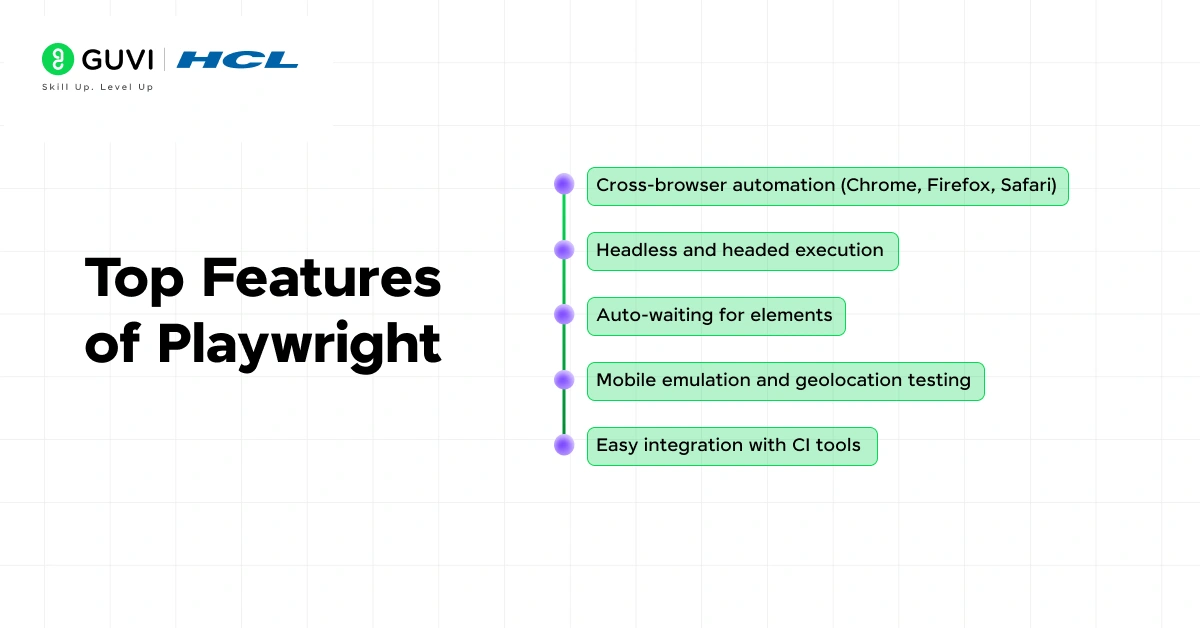
- Cross-browser automation (Chrome, Firefox, Safari)
- Headless and headed execution
- Auto-waiting for elements
- Mobile emulation and geolocation testing
- Easy integration with CI tools
Why Java with Playwright?
Java is widely used in enterprise applications. Playwright’s Java bindings allow QA teams and developers to:
- Reuse existing Java-based frameworks (JUnit/TestNG)
- Write faster, more stable tests compared to Selenium
- Avoid flaky scripts with built-in auto-waiting
Setting Up Playwright with Java
Prerequisites:
- Java 11 or later
- Maven
- Any Java IDE (IntelliJ IDEA, Eclipse, VS Code)
Step 1: Create a Maven Project
pom.xml:
| <project> <modelVersion>4.0.0</modelVersion> <groupId>com.playwrightdemo</groupId> <artifactId>playwright-java-demo</artifactId> <version>1.0-SNAPSHOT</version> <dependencies> <dependency> <groupId>com.microsoft.playwright</groupId> <artifactId>playwright</artifactId> <version>1.44.0</version> </dependency> <dependency> <groupId>org.junit.jupiter</groupId> <artifactId>junit-jupiter</artifactId> <version>5.8.2</version> </dependency> </dependencies> </project> |
Step 2: Install Browsers
After the dependency is installed, run:
mvn exec:java -e -Dexec.mainClass=com.microsoft.playwright.CLI -Dexec.args=”install”
Automating Login Test Case
Let’s automate a login flow on an OrangeHRM website:

https://opensource-demo.orangehrmlive.com/
Test Scenario:
- Launch the browser
- Navigate to the login page
- Enter username and password
- Click Login
- Verify that the dashboard loads successfully
Java Code using Playwright + JUnit:
| import com.microsoft.playwright.*; import org.junit.jupiter.api.*; public class LoginTest { static Playwright playwright; static Browser browser; Page page; @BeforeAll static void setup() { playwright = Playwright.create(); browser = playwright.chromium().launch(new BrowserType.LaunchOptions().setHeadless(false)); } @BeforeEach void createPage() { page = browser.newPage(); } @Test void loginToOrangeHRM() { page.navigate(“https://opensource-demo.orangehrmlive.com/”); // Enter credentials page.locator(“input[name=’username’]”).fill(“Admin”); page.locator(“input[name=’password’]”).fill(“admin123”); // Click login button page.locator(“button[type=’submit’]”).click(); // Assertion: Verify dashboard is displayed Locator dashboardTitle = page.locator(“h6:has-text(‘Dashboard’)”); Assertions.assertTrue(dashboardTitle.isVisible(), “Login failed or dashboard not loaded”); } @AfterEach void closePage() { page.close(); } @AfterAll static void teardown() { browser.close(); playwright.close(); } } |
Running the Test
To run the test using Maven:
mvn test
Kickstart Your Coding Career: Enroll in the Best Java Programming Course with Certification! Gain real-world skills, hands-on project experience, and an industry-recognized certificate from GUVI. Start learning Java now and boost your tech career!
Conclusion
Using Playwright with Java opens up new possibilities for teams invested in Java ecosystems and looking for more robust and stable UI automation. The experience of developing scripts becomes smoother when auto-waiting eliminates common hurdles in flaky test execution. The process not only delivers faster feedback but also strengthens the overall confidence in release cycles. Teams that choose Playwright with Java position themselves for greater test reliability and smoother integration with continuous delivery systems, shaping a more resilient approach to quality assurance in their projects.
Success Stories

About the Author
Lavish Jain
A Professional Developer Mentor and Corporate Trainer with over 10 years of experience, I have contributed to technological advancements through comprehensive training and mentorship. My journey includes pivotal roles at Cluebix, Focus-4D,ThoughtWorks, and currently with Guvi -HCL Group, where I shape the careers of aspiring developers. I specialize in simplifying complex concepts, making them accessible to learners at all levels, and have successfully trained lakhs of budding developer through corporate and boot camp courses focused on full-stack development.
View all posts by Lavish Jain
Connect with me @













Did you enjoy this article?