


Artificial Intelligence and Machine Learning Articles
How to Evaluate LLM Outputs in Production Deployments
AI/ML Skills Gap 2026: Why Companies Can't Find Job-Ready Talent
20 AI/ML Interview Questions Recruiters Can Use Without a Tech Background - Best Guide
How Industry-Backed AI/ML Bootcamps Are Changing the AI/ML Hiring Pipeline - Best Guide 2026


Get In Touch For Details! Request More Information
Build a Private AI Chatbot Using Google’s Gemma 3n
Apr 07, 2026 6 Min Read 1325 Views
(Last Updated)
Imagine having your own AI assistant that runs entirely on your computer, no cloud dependency, no API fees, and no data leaving your device.The AI operates locally, meaning prompts are not sent to external servers, which makes them fast and private.
This is now possible with modern local AI models.
Most developers have been using cloud based language models to create chatbots, which usually come with privacy risks, API fees and lack of control. This is where Google’s Gemma models offer a powerful alternative.
Gemma is a family of lightweight, high-performance open models that may be operated effectively on local machines. By launching Gemma 3n, developers can now create their own chatbot, which is an intelligent AI chatbot that can generate intelligent replies even without external infrastructure.
In this beginner-friendly guide, you’ll learn how to develop local AI chatbot applications in Gemma 3n, starting with the installation of the selected tools to the assembly of your very own personal AI helper.
Quick answer:
You can build a private AI chatbot using Google’s Gemma 3n by running the model locally on your system instead of relying on cloud APIs. Tools like Ollama, Python, Hugging Face Transformers, and Streamlit allow developers to download the Gemma model, process prompts locally, and generate AI responses without sending data to external servers.
Table of contents
- What Is a Private AI Chatbot?
- What Is Google’s Gemma 3n?
- Requirements to Build a Private AI Chatbot
- Hardware
- Software
- How to Build a Private AI Chatbot using Google’s Gemma 3n
- Method 1: Quick Start with Ollama
- Step 1: Install Ollama
- Step 2: Pull Gemma 3n Model
- Step 3: Build a Simple Web Chatbot Interface
- Method 2: Advanced Build with Hugging Face Transformers
- Step 1: Download and Load Gemma 3n
- Step 2: Build a Basic Terminal Chatbot
- Step 3: Enhance with Prompt Engineering
- Step 4: Add Conversation Memory
- Step 5: Create a Sleek Web Interface with Streamlit
- Enhancing Your Private Chatbot
- Privacy and Security Features
- Troubleshooting Common Issues
- Wrapping it up:
- FAQs
- What is a private AI chatbot?
- Why build a private AI chatbot?
- What is Google’s Gemma 3n?
- Is a personal AI chatbot offline?
What Is a Private AI Chatbot?
A private AI chatbot is a chat-based AI application that operates on your device or on a local infrastructure rather than on external APIs.
In comparison to cloud-based chatbots, private chatbots:
- Operate on your personal computer or server.
- Privacy of user interaction and records.
- Can work offline
- Provide complete customization.
By developing your own AI chatbot, you are in charge of the model itself, the training data and the deployment environment.
This makes private chatbots ideal for:
- Companies that deal with sensitive data.
- Researchers testing AI models.
- Personal productivity assistants
- Educational tools
- Company knowledge bots within a company.
The AI model does not require all prompts to be sent to a remote API, but instead it executes on your computer and provides responses.
What Is Google’s Gemma 3n?
Gemma is a collection of open AI models created by Google and trained to perform well on local devices.
Gemma models are optimized to give:
- Excellent logical skills
- Effective operation at consumer hardware
- Open access for developers
- Compatibility with modern AI frameworks
Gemma 3n is an improved version of the Gemma architecture which is focused on:
- Improved instruction following
- Optimized performance inference
- Minimized hardware requirement
This is what makes Gemma the best option in case you need to develop AI chatbot apps locally and do not need large GPUs.
Individual developers with relatively small hardware are able to test their own AI assistants.
Requirements to Build a Private AI Chatbot
You will want to make sure you have the following tools before you start.
Hardware
In order to create AI chatbot systems locally, you will require:
Minimum:
- 16GB RAM
- Modern CPU
Recommended:
- GPU (NVIDIA preferred)
- 32GB RAM
Gemma models have been created to run effectively, and better hardware enhances the performance.
Software
Install the following:
Ollama or other inference tool.
These are used to load and run Gemma on your own computer.
How to Build a Private AI Chatbot using Google’s Gemma 3n
Method 1: Quick Start with Ollama
Ollama simplifies running Gemma 3n locally, no complex code required. It’s like a app store for AI models.
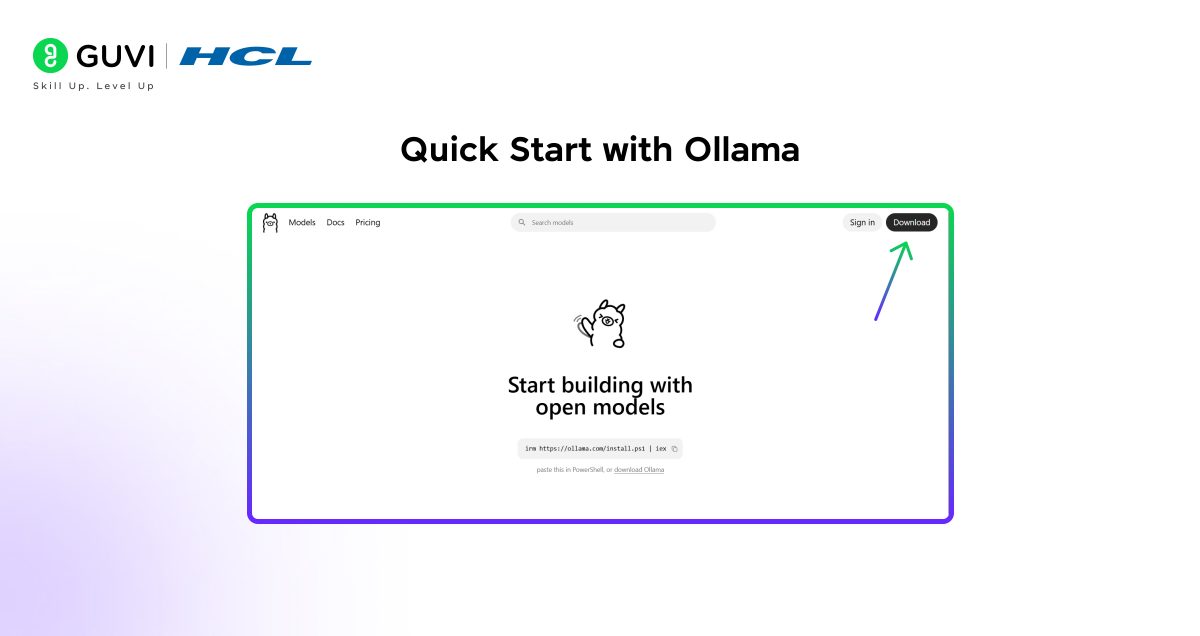
Step 1: Install Ollama
- Visit ollama.com and download for your OS (Windows, macOS, Linux).
- On Linux/Mac: Run curl -fsSL https://ollama.com/install.sh | sh in terminal.
- Verify: ollama –version should show the latest version
Step 2: Pull Gemma 3n Model
Open terminal and run: ollama pull gemma3n:4b (use 2b for lighter version if RAM is low). This downloads ~2-4GB once.
Test it: ollama run gemma3n:4b and chat directly in terminal. Type “Hello!” and hit enter your private chatbot responds instantly.
Step 3: Build a Simple Web Chatbot Interface
To build AI chatbot with a nice UI:
- Install Python packages: pip install streamlit ollama.
- Create chatbot.py
| import streamlit as st import ollama st.title(“Private Gemma 3n Chatbot”) if “messages” not in st.session_state: st.session_state.messages = [] for message in st.session_state.messages: with st.chat_message(message[“role”]): st.markdown(message[“content”]) if prompt := st.chat_input(“Ask me anything…”): st.session_state.messages.append({“role”: “user”, “content”: prompt}) with st.chat_message(“user”): st.markdown(prompt) with st.chat_message(“assistant”): response = ollama.chat(model=’gemma3n:4b’, messages=[{“role”: “user”, “content”: prompt}]) st.markdown(response[‘message’][‘content’]) st.session_state.messages.append({“role”: “assistant”, “content”: response[‘message’][‘content’]}) |
- Run streamlit run chatbot.py open localhost:8501 in browser. Chat privately!
This setup ensures all processing stays local, making it truly private.
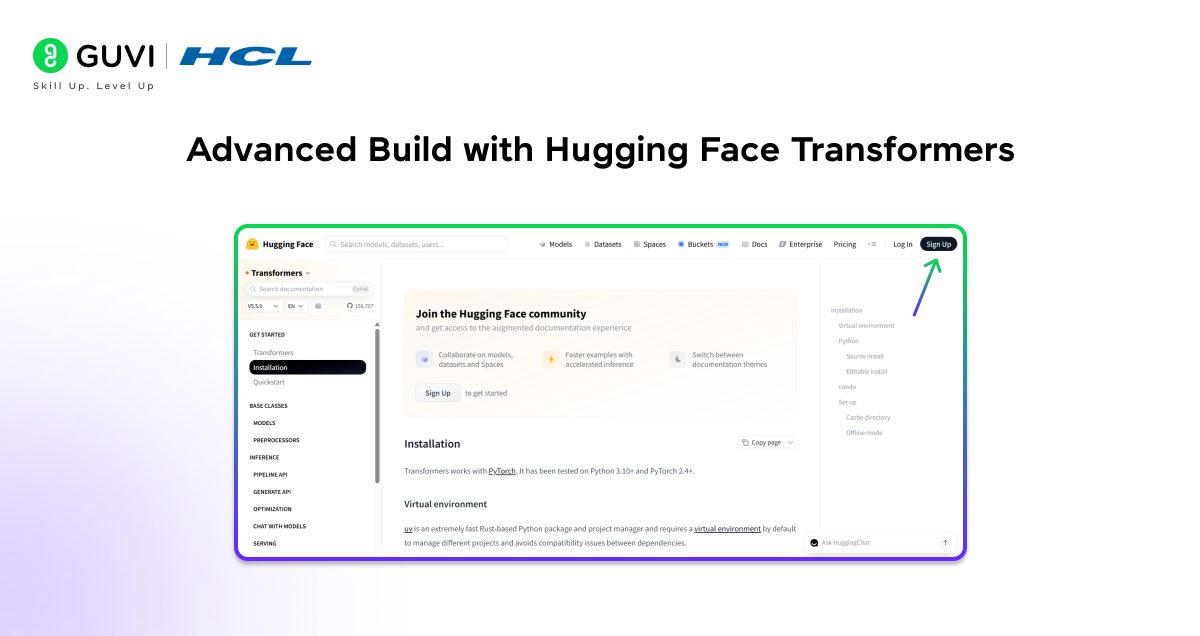
Method 2: Advanced Build with Hugging Face Transformers
For more control, use Python libraries to build a private AI chatbot from scratch.
Create a virtual environment:
| python -m venv gemma-chatbot-env source gemma-chatbot-env/bin/activate # On Windows: gemma-chatbot-env\Scripts\activate |
Install core libraries:
| pip install torch transformers accelerate streamlit huggingface-hub |
Torch handles computations, Transformers loads Gemma, and Streamlit builds the UI. These are free and beginner-friendly.
Verify: Run python -c “import torch; print(torch.__version__)”—no errors mean you’re ready.
Step 1: Download and Load Gemma 3n
Gemma 3n models live on Hugging Face. Use the instruction-tuned version for chat: google/gemma-3n-E4B-it (or E2B-it for lighter use).
Create load_model.py:
| from transformers import AutoTokenizer, AutoModelForCausalLM import torch model_name = “google/gemma-3n-E4B-it” # Adjust for size: E2B-it for low RAM tokenizer = AutoTokenizer.from_pretrained(model_name) model = AutoModelForCausalLM.from_pretrained( model_name, torch_dtype=torch.float16, device_map=”auto” # Auto-places on GPU if available ) print(“Gemma 3n loaded locally! Ready to build AI chatbot.”) |
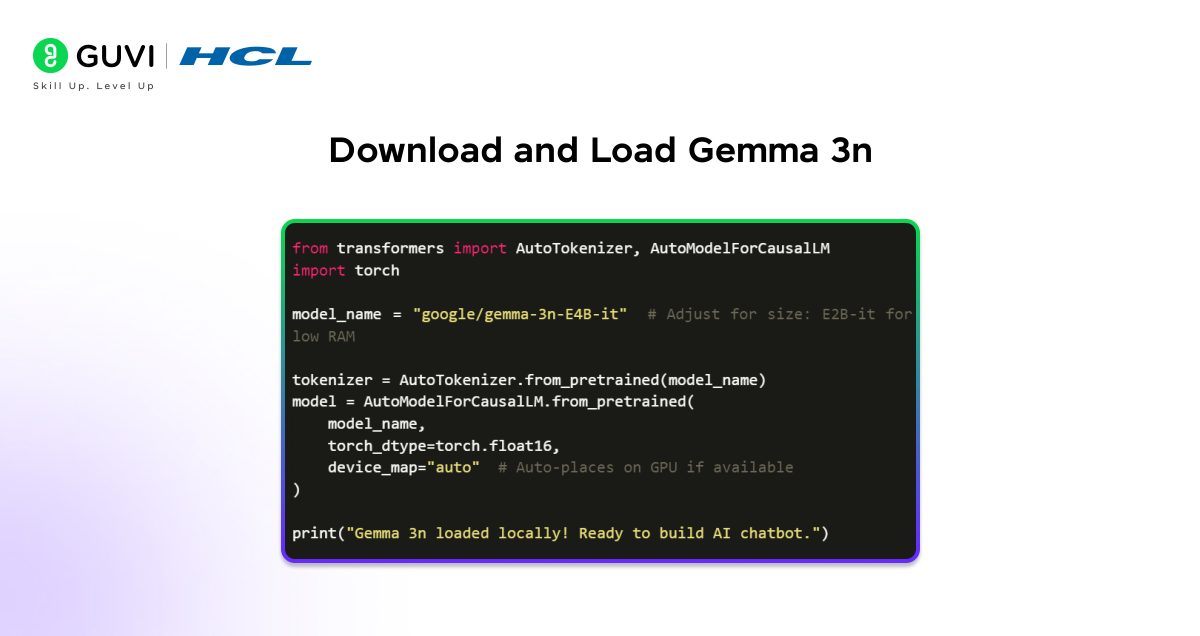
Run python load_model.py. First run downloads ~2-4GB—patience pays off. Now your machine hosts a private powerhouse.
Step 2: Build a Basic Terminal Chatbot
Test with a simple loop. Save as basic_chat.py:
| def chat(): print(“=== Private Gemma 3n Chatbot ===”) print(“Type ‘exit’ to quit.\n”) while True: user_input = input(“You: “) if user_input.lower() == “exit”: break # Tokenize input inputs = tokenizer(user_input, return_tensors=”pt”).to(model.device) # Generate response with torch.no_grad(): outputs = model.generate( **inputs, max_new_tokens=256, temperature=0.7, # Creativity level do_sample=True, pad_token_id=tokenizer.eos_token_id ) response = tokenizer.decode(outputs[0][inputs[‘input_ids’].shape[1]:], skip_special_tokens=True) print(“AI:”, response.strip(), “\n”) if __name__ == “__main__”: chat() |
Execute python basic_chat.py. Ask “Explain Python virtual environments” watch Gemma respond locally. This core script to build a private AI chatbot proves privacy: no servers involved.
Step 3: Enhance with Prompt Engineering
Raw inputs can yield bland replies. Add a system prompt for personality.

Update basic_chat.py:
| system_prompt = “You are a friendly, expert AI assistant specialized in coding and tech tutorials. Respond conversationally and helpfully.” # Inside loop: full_prompt = f”<start_of_turn>user\n{system_prompt}\n\nUser: {user_input}<end_of_turn>\n<start_of_turn>model\n” inputs = tokenizer(full_prompt, return_tensors=”pt”).to(model.device) # … rest same |
Gemma 3n uses special turn tokens for chat structure. This guides behavior, e.g., “Act as a .NET tutor” for your interests. Experiment: Lower temperature=0.1 for factual replies.
Step 4: Add Conversation Memory
Memory makes chats natural. Track history without bloating prompts.
Modify for state:
| conversation_history = [] def chat(): # … print header while True: user_input = input(“You: “) if user_input.lower() == “exit”: break # Append to history conversation_history.append(f”User: {user_input}”) # Build context (limit to last 5 exchanges for efficiency) context = “\n”.join(conversation_history[-10:]) # Pairs of user/AI full_prompt = f”{system_prompt}\n\n{context}<end_of_turn>\n<start_of_turn>model\n” inputs = tokenizer(full_prompt, return_tensors=”pt”).to(model.device) # Generate as before response = tokenizer.decode(outputs[0][inputs[‘input_ids’].shape[1]:], skip_special_tokens=True) print(“AI:”, response.strip()) conversation_history.append(f”AI: {response.strip()}”) # Save AI reply too |
Now it remembers: “Earlier you mentioned Python build on that?” Perfect for ongoing sessions to build AI chatbot with context.
Save history to JSON for persistence:
| import json # Before loop: with open(‘history.json’, ‘r’) as f: conversation_history = json.load(f) # After append: with open(‘history.json’, ‘w’) as f: json.dump(conversation_history, f) |
Step 5: Create a Sleek Web Interface with Streamlit
Elevate to a browser app. New file web_chatbot.py:
| import streamlit as st import torch # Load model (cached) @st.cache_resource def load_gemma(): model_name = “google/gemma-3n-E4B-it” tokenizer = AutoTokenizer.from_pretrained(model_name) model = AutoModelForCausalLM.from_pretrained(model_name, torch_dtype=torch.float16, device_map=”auto”) return tokenizer, model tokenizer, model = load_gemma() st.title(” Private Gemma 3n AI Chatbot”) st.caption(“All chats stay on your device. **Build a private AI chatbot** made easy!”) # Session state for history if “messages” not in st.session_state: st.session_state.messages = [{“role”: “system”, “content”: “You are a helpful coding tutor.”}] st.session_state.history = [] for message in st.session_state.messages[1:]: # Skip system with st.chat_message(message[“role”]): st.markdown(message[“content”]) if prompt := st.chat_input(“Type your message…”): st.session_state.messages.append({“role”: “user”, “content”: prompt}) with st.chat_message(“user”): st.markdown(prompt) with st.chat_message(“assistant”): # Build prompt with history history_str = “\n”.join([f”{m[‘role’].capitalize()}: {m[‘content’]}” for m in st.session_state.messages]) full_prompt = f”<start_of_turn>user\n{history_str}<end_of_turn>\n<start_of_turn>model\n” inputs = tokenizer(full_prompt, return_tensors=”pt”).to(model.device) with torch.no_grad(): outputs = model.generate(**inputs, max_new_tokens=300, temperature=0.7, do_sample=True) response = tokenizer.decode(outputs[0][inputs[‘input_ids’].shape[1]:], skip_special_tokens=True) st.markdown(response) st.session_state.messages.append({“role”: “assistant”, “content”: response}) |
Run streamlit run web_chatbot.py localhost:8501 opens a ChatGPT-like interface. Share locally via network (still private).
Enhancing Your Private Chatbot
Add Multimodal Support
Gemma 3n handles images/audio. Extend with vision: Upload pics for analysis.
Example: Modify prompt to “Describe this image: [image_data]”.
Customize Personality
Set system prompt: “You are a helpful coding tutor.” Add to chat history start.
Persistence and Memory
Save chats to local file: Use JSON for history. Load on restart for ongoing convos.
Deployment Options
- Streamlit for web app
- Gradio for quick sharing (local only).
- Docker for portability
Privacy and Security Features
Gemma 3n’s on-device design means no data leaves your machine, zero API calls. Use quantized GGUF versions for even lower resource use via Ollama.
Audit outputs, as models can hallucinate. For production, add input filters.
Troubleshooting Common Issues
- Out of Memory: Use smaller model (2B) or torch_dtype=torch.float16.
- Slow on CPU: Enable GPU if available; install CUDA.
- Model Not Found: Check Hugging Face for exact repo names like google/gemma-3n-E2B-it.
- Ollama Errors: Restart service, pull model again.
Level up with HCL GUVI’s industry-recognized AI & ML course, designed for beginners and professionals alike. With hands-on projects, live mentor-led sessions, and real-world workflows, you’ll learn how to build, deploy, and scale AI-powered applications confidently in the modern development landscape.
Wrapping it up:
You have everything to build your own personal AI chatbot. You now know how private AI systems work, from setting up Google’s Gemma 3n and creating a working chat interface, you’ve seen how developers can build powerful conversational tools that run locally. Now it’s your turn to try and experiment with new things, such as adding a new feature, customising the chatbot and many more. The more you experiment and build, the more you’ll learn about creating smarter and more efficient AI applications.
FAQs
1. What is a private AI chatbot?
A private AI chatbot is a conversational AI that runs locally on your computer or server instead of external APIs, keeping user data and conversations secure.
2. Why build a private AI chatbot?
When you build a private AI chatbot, you will enjoy increased privacy, save on API expenses, and can use the AI offline, as well as completely customize the AI.
3. What is Google’s Gemma 3n?
Gemma 3n is a light AI model created by Google that is capable of efficient execution on the local computers and is suitable to create applications of AI chatbots.
4. Is a personal AI chatbot offline?
Yes. The model is locally run, therefore, a personal AI chatbot can operate without the internet once configured.
Success Stories

About the Author
Vishalini Devarajan
An Aerospace Engineer turned content writer, I focus on making complex concepts easy to understand through well-structured, reader-friendly blogs. Whether it’s a technical topic or a non-technical one, I love creating content that is clear, engaging, and impactful.
View all posts by Vishalini Devarajan
Connect with me @





Did you enjoy this article?